
Sample Order Processing
Go to the Orders and click on “Rent Orders” to process a order.
In the Order view, there are four tabs that display detailed information about the order.
Order Details
Refer Rent Orders-Order Details article to know more about “Order Details”.
Financials
Refer Rent Orders-Financials article to know more about authorize the card for deposit, collecting payments, Invoice etc .
Customer Info
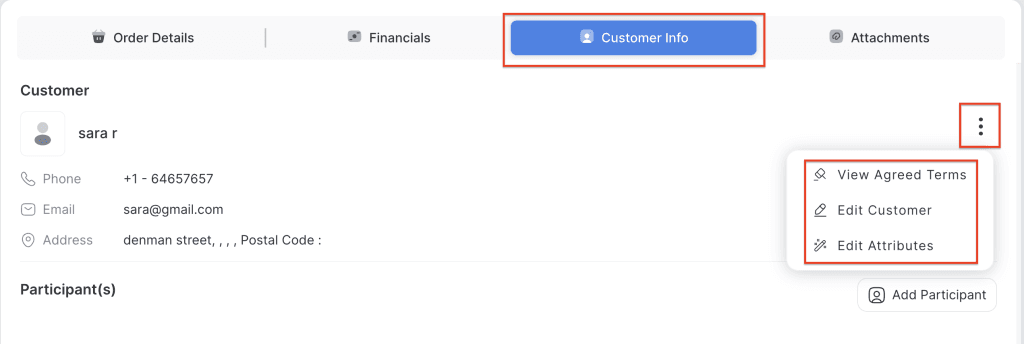
Customer Info is the section where you can manage all renter-related details for an order. Here, you can add participants, collect and view signed waivers, add or modify renter attributes (such as boot size, height, weight, etc.), and send waiver requests via email with the waiver attached for customers to sign.
Click on the three-dot menu for the main customer to access additional actions. From here, you can view the agreed terms, or choose Edit Customer, which will redirect you to the customer’s profile where you can update details such as name, email, address, and phone number. Any changes made in the customer profile will automatically update in the order. The Edit Attributes option allows you to edit or modify the customer’s attributes.
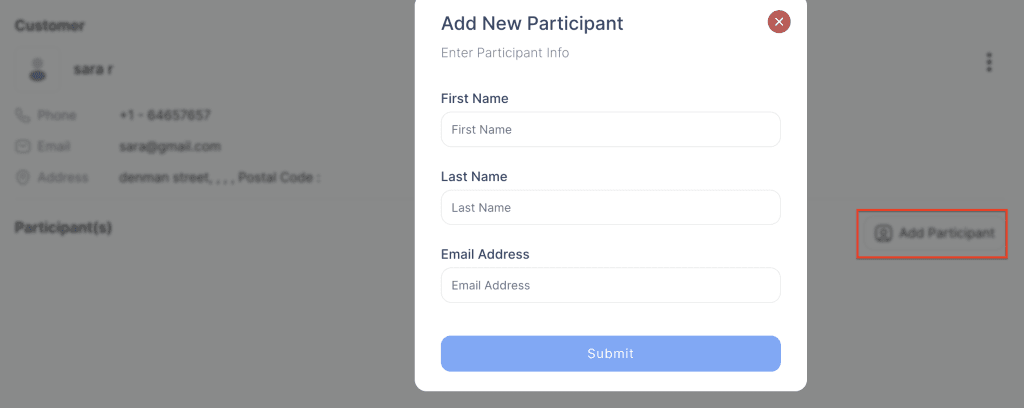
Click on the “Add Participant” button to add a new participant. Once the participant is added, assign an item to them, and the participant will become a renter.
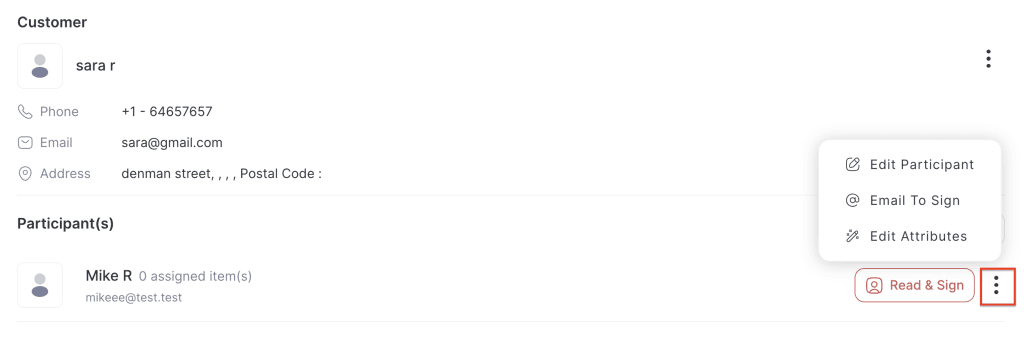
Click on the three-dot menu for the participant to access additional actions. From here, you can send email the waiver to the participant for signing, or choose Edit Participant, to update details such as name & email address. The Edit Attributes option allows you to edit or modify the participant’s attributes. Click on the Read & Sign button to sign the waiver in-store if the participant is physically present.
Attachments
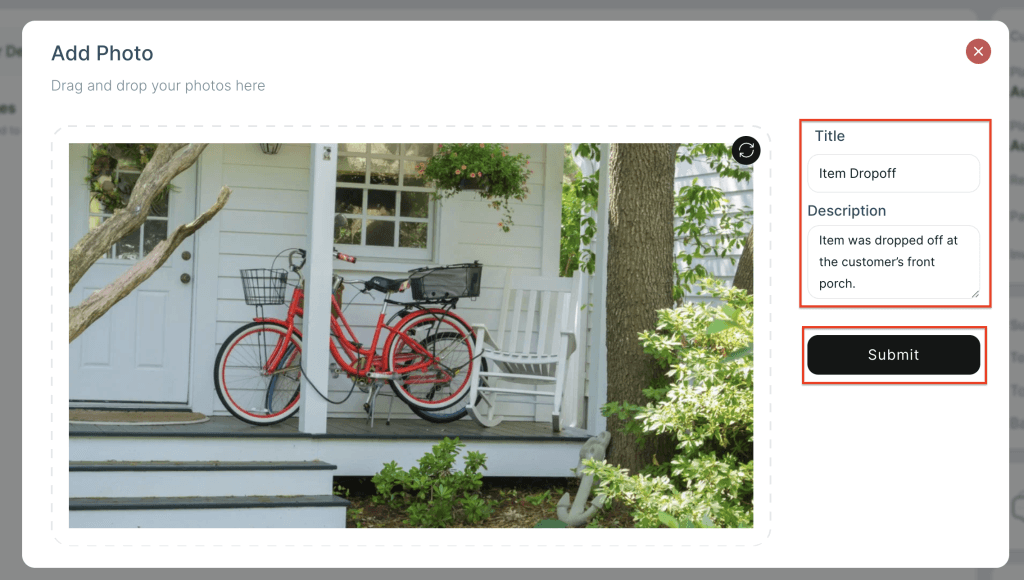
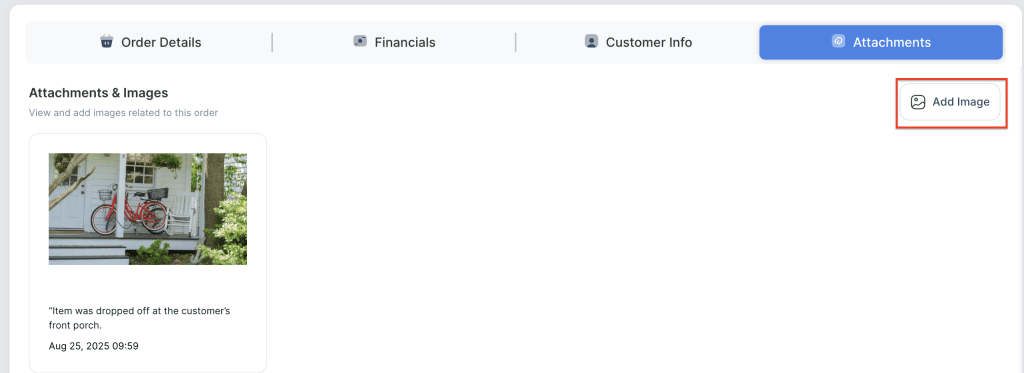
Attachments is the section where you can upload images related to the order. For example, you can add photos of the products to show their condition when given to the customer and their condition when returned, to properly document any changes.
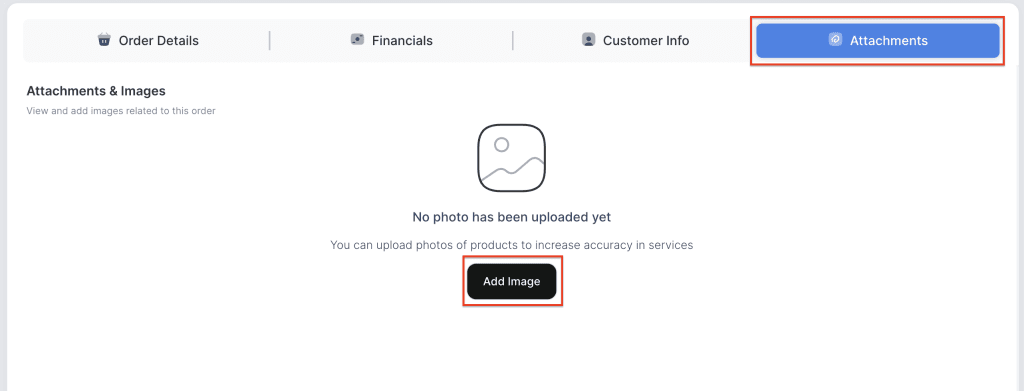
Click on Browse Files to upload the picture, then enter a title and description for the image. Once done, click the Submit button to save it.
Click on Add Image to add more images to the order.
Explore Related Articles:
Introduction to Rent orders
Rent orders “Order Details” tab
Rent orders “Financials” tab
Invoice Management