
Extend rental period
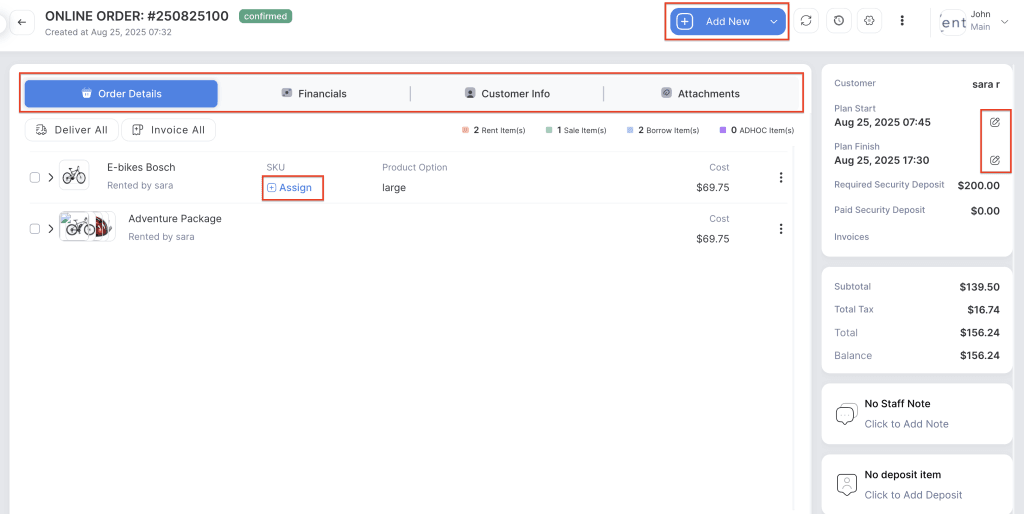
Click on the order number on the rent orders list. On the right-hand menu, you can use the pencil (edit) icons to extend or modify the rental start and finish date and time.
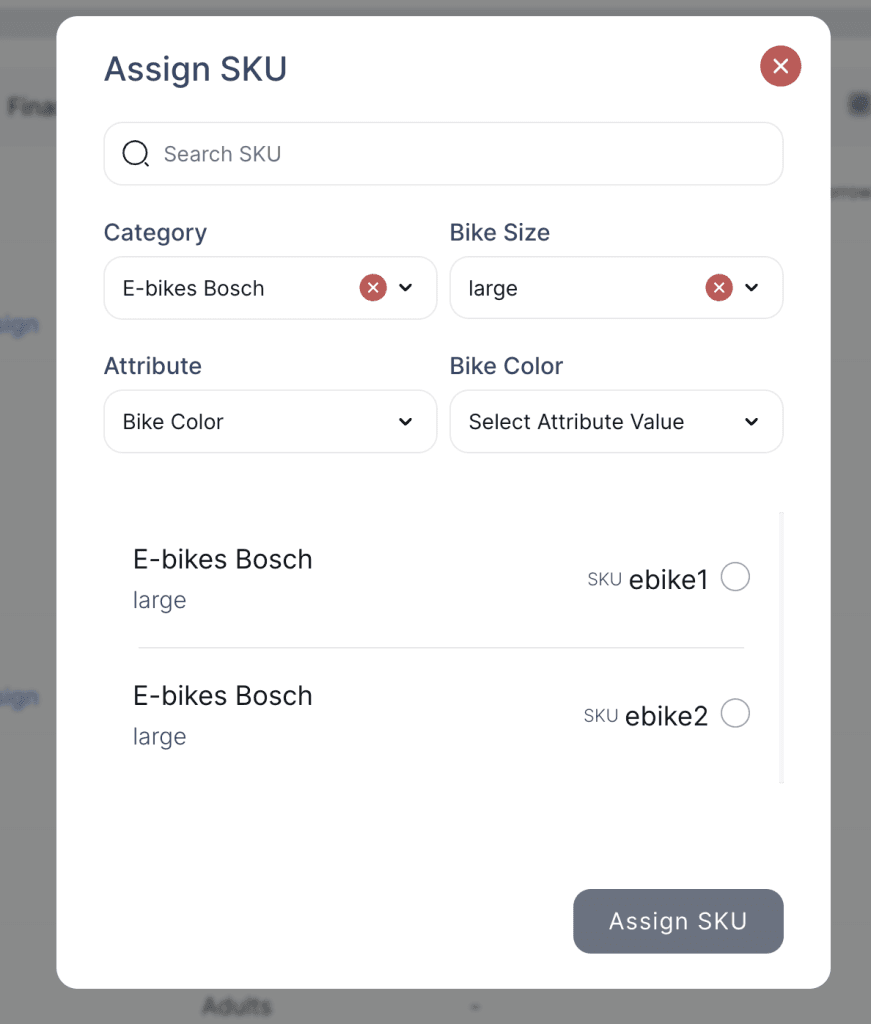
Assign SKU
Click on “Assign SKU” and select the SKU from the list of the inventory or from the item three-dot menu, you can click on “Assign SKU” and select the SKU from the list of the inventory.
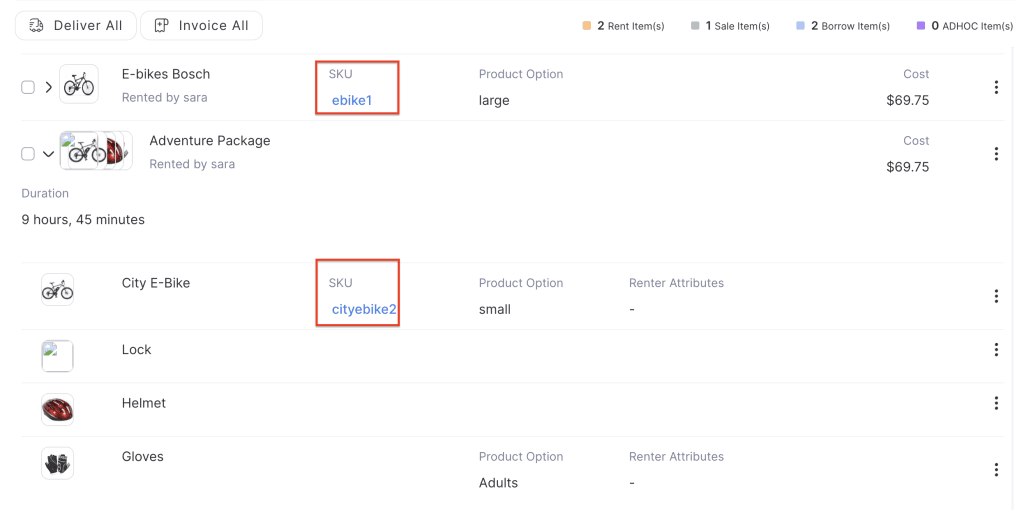
Based on your business needs, you can manage item delivery, collecting payments and invoicing from the order view.
Order Details Item Menu
In the Order view, there are four tabs that display detailed information about the order. The Order Details tab shows details such as items, prices, and assigned SKUs. The Financials tab allows you to generate invoices, collect payments, and manage security deposits or refunds. The Customer Info tab displays the main customer’s details along with renters information, including personal details, signed waivers, and renter attributes. The Attachments tab enables you to upload images, such as pictures of the customer, driver’s licenses, or any documents related to the order.
On the right-hand menu, you can use the pencil (edit) icons to extend or modify the rental start and finish date and time.
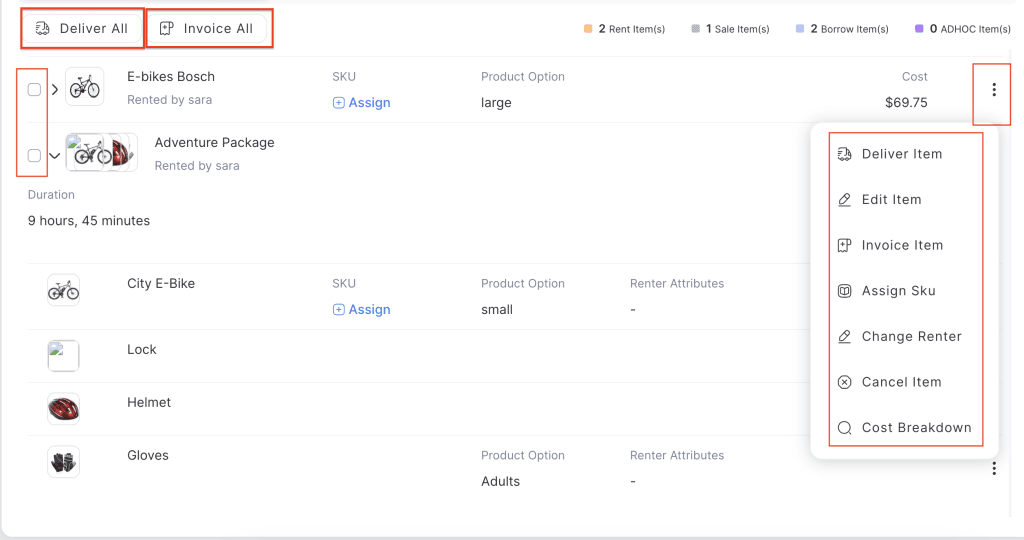
From the three-dot menu, you can able to see the list of the options to manage your order.
Deliver Item
Click on the three-dot menu to deliver items one by one, or use the Deliver All button to deliver all items at once.
Invoice Item
For invoicing, you can use the Invoice All button to generate a single invoice for all items, or choose the Invoice Item option to create invoices for specific items. You can also use the checkboxes to generate multiple invoices with different item combinations.
Cancel Item
The Cancel Item option allows you to remove a selected item from the order before it is delivered.
Edit Item
Edit Item option lets you modify the existing item in the order with the another item only before delivering the item.
Note: Edit item will only work if both items use the same pricing.
Replace Item
The Replace Item option is available only after the item status is marked as Delivered. To replace, click on the three-dot menu, select “Replace Item,” and choose an item either from the same category or from a different category.
Change Renter
To change the renter, click on the three-dot menu of the item, select “Change Renter,” choose the new renter from the list, and then click Submit.
Return Item
To return items, click on the three-dot menu to process them one by one, or use the “Return All” button to return all items at once.
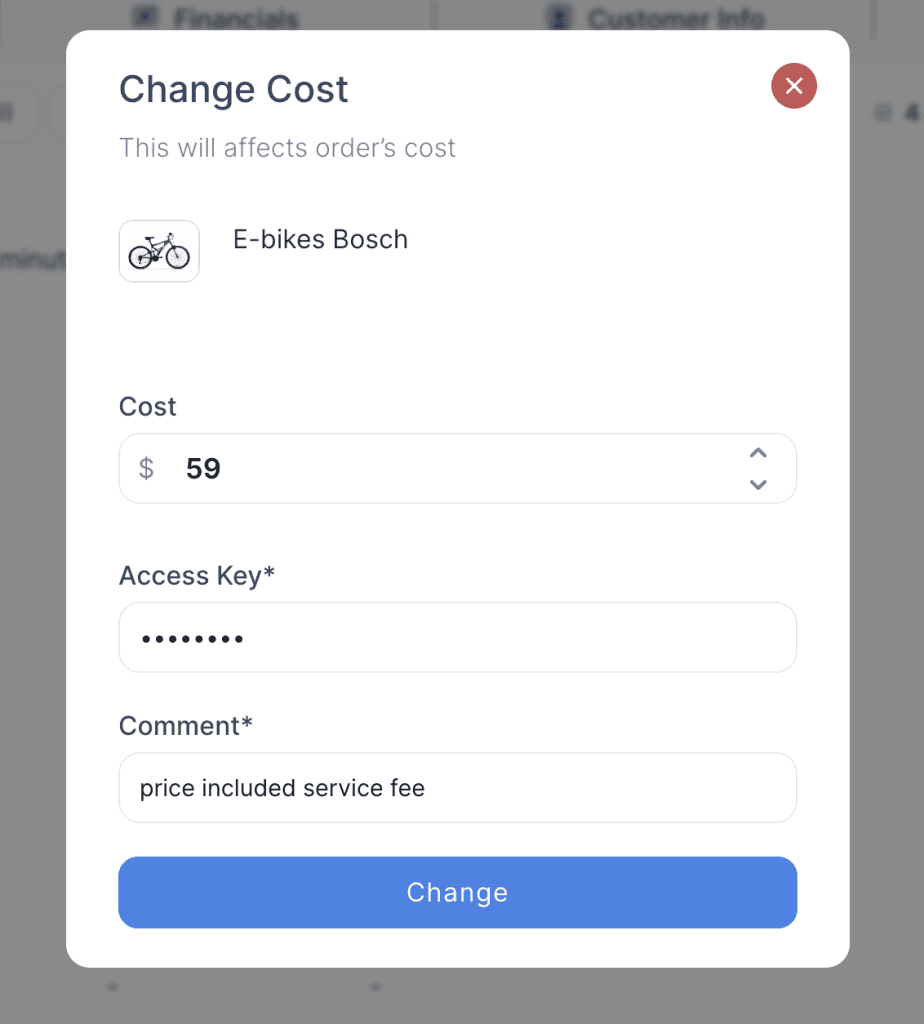
Change cost
The price of an item can only be changed when the product is returned. To update the price, click on the three-dot menu and select the “Change Cost” option. Enter the new amount (which can be higher or lower than the original price), then provide your access key and a comment. The original price will be replaced with the updated amount.

Return And Send To Service
When returning a product that is damaged and requires repair, select the option “Return and Send to Service.” This action will mark the specific SKU as out of service until the repair is completed, after which the status will automatically update to available for rent.This will make that particular SKU product out of service until the repair has been done and make the status as available for rent.