
Rent Orders
Go to the Orders and click on “Rent Orders” to process a order.
Use the search bar to find orders by customer name, order number, or email. You can filter results using the activity/category option to view orders within a specific category. Orders can also be sorted by invoice balance status, such as balanced or unbalanced invoices.
The export button allows you to download the rent orders list as a PDF or CSV file. Multiple order status tabs, such as pending, confirmed, or delivered, make it easy to view orders under a particular status. Additionally, the vertical three-dot menu provides quick actions, including sending an email or SMS to the customer, printing the receipt, confirming the order, or starting the cancellation process.
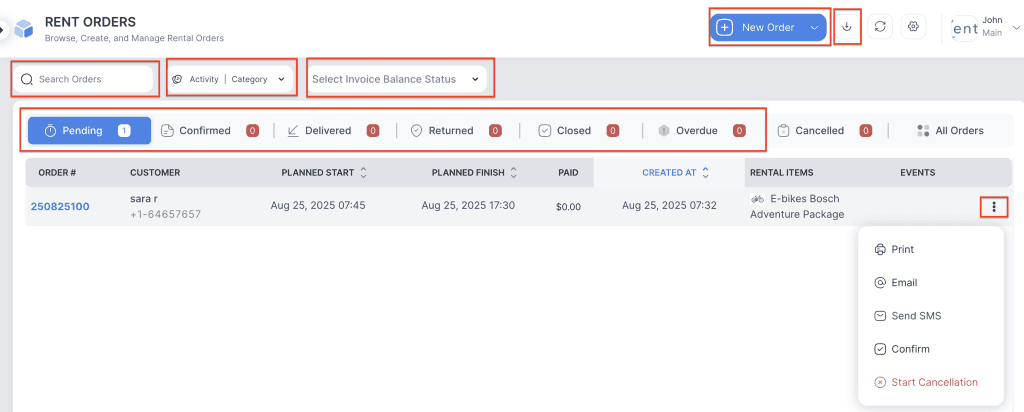
Click on the confirm button to confirm the order. Click on the order number to view the order details.

Add New Items
Click on the Add New button to add items to the order, including rent, borrow, sale, or package items. The same button can also be used to add an ad-hoc amount or apply a coupon.

Add Rent Item
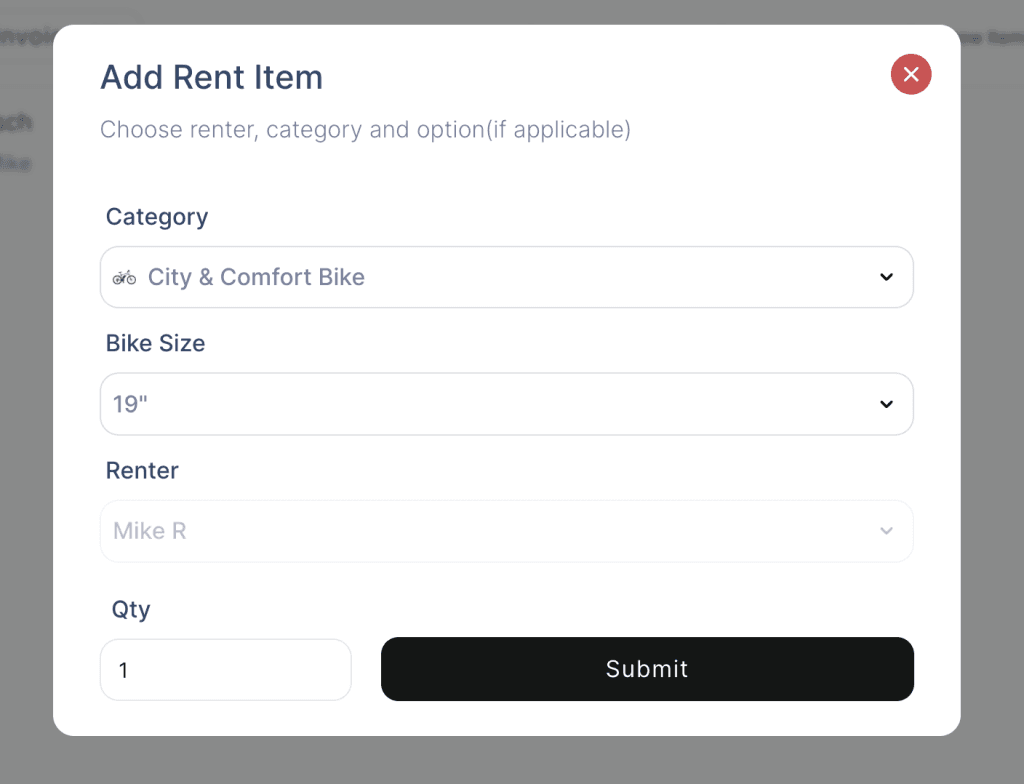
Click on the Add Rent Item button to add a rental item to the existing order. Select the item from the category list, choose any applicable options, and assign it to a renter. Once submitted, the item will be added to the order with a price based on the selected rental plan period.
Add Borrow Item
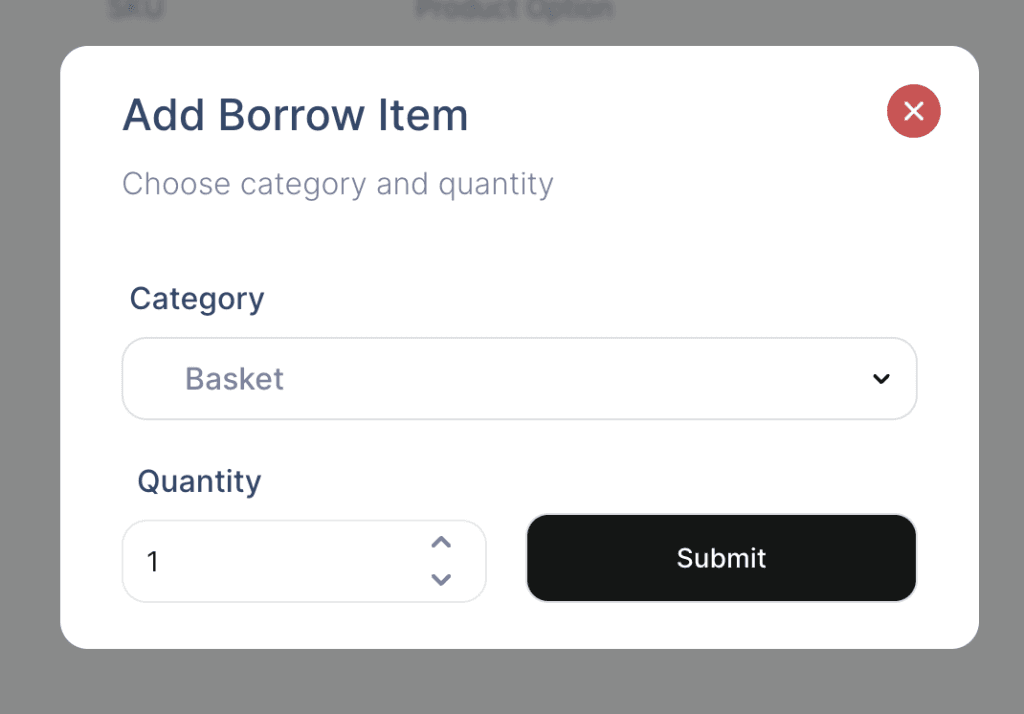
Click on the Add Borrow Item button to add a borrow item to the existing order. Select the item, enter the required quantity, and click submit. The item will be added to the order at zero cost.
Add Purchase Item
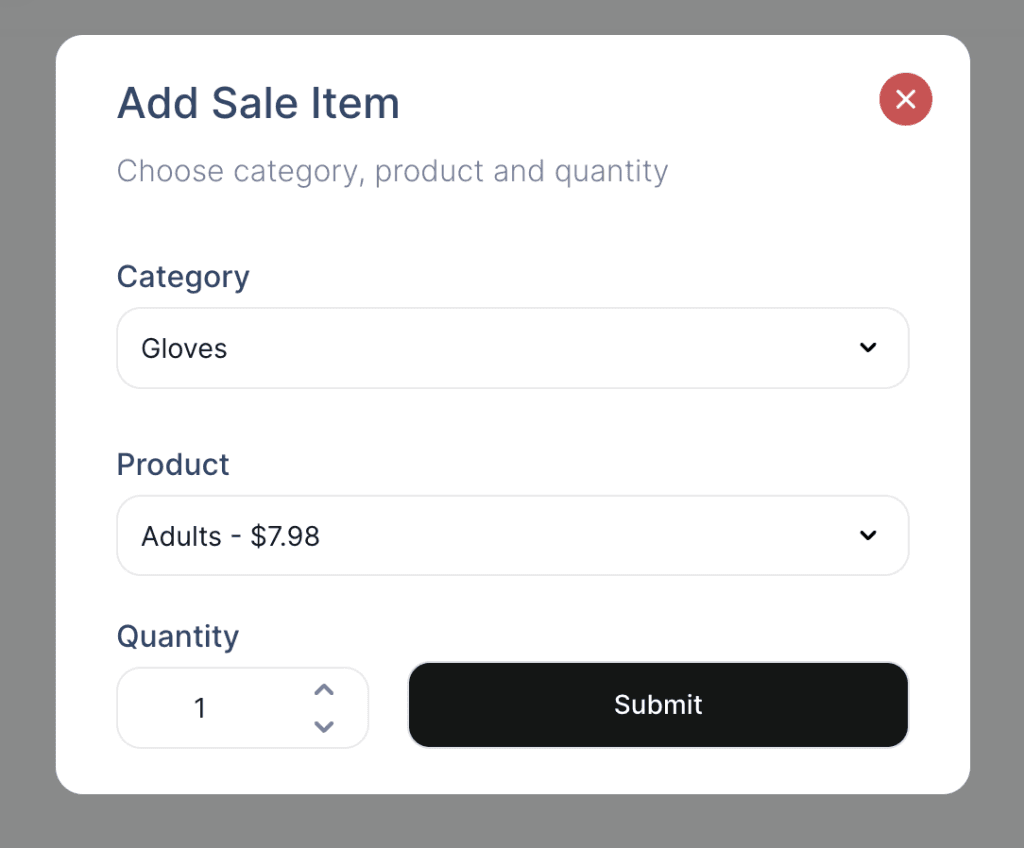
Click on the Add Purchase Item button to add a sale item to the existing order. Select the item from the category list, choose any available product options, and enter the desired quantity. Once submitted, the item will be added to the order with a total price based on the selected quantity.
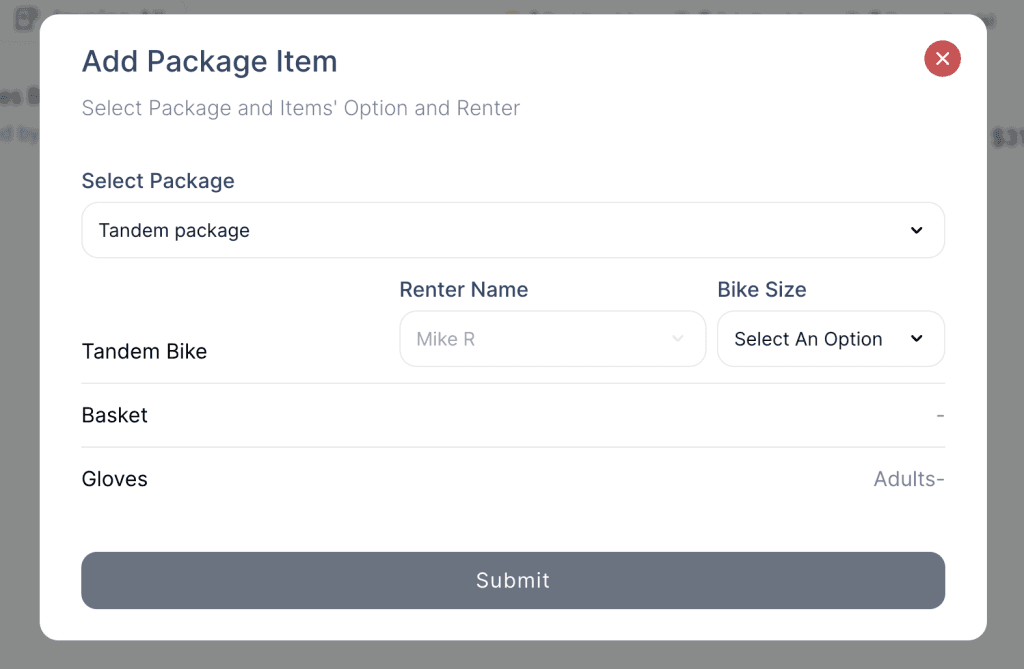
Add Package Item
Click on the Add Package Item button to add a package to the existing order. Select the package from the packages list, choose any available options, and assign it to a renter. Once submitted, the package will be added to the order with a price based on the selected rental plan period.
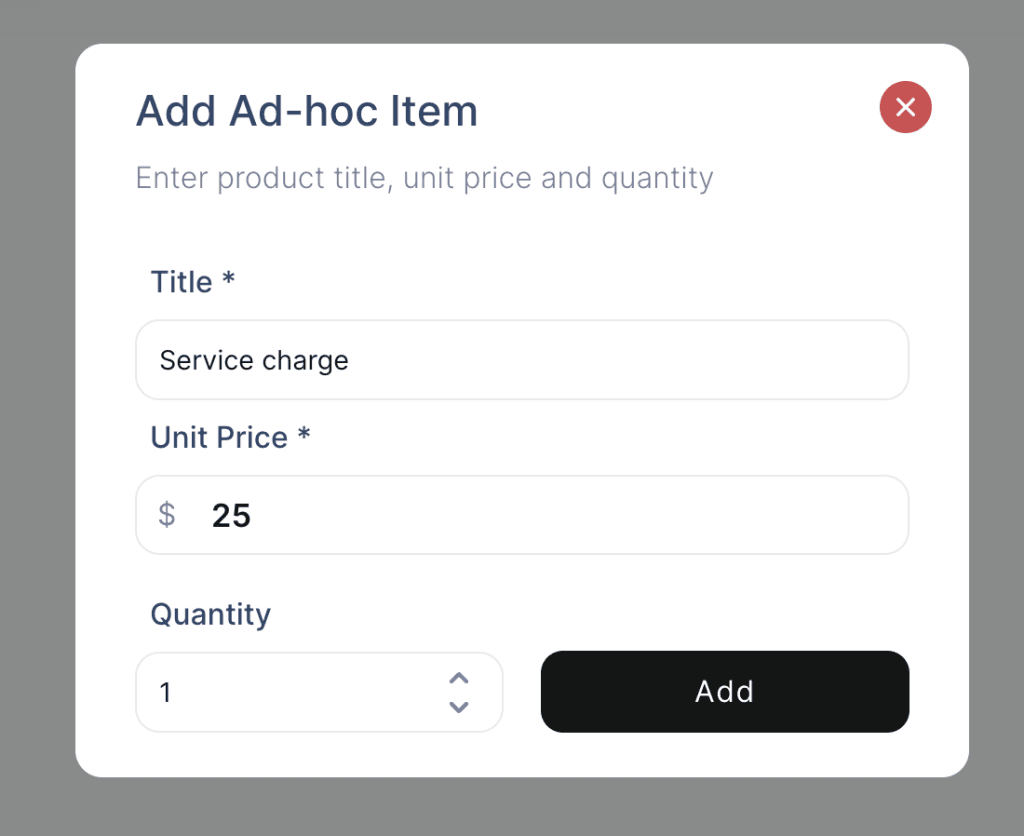
Add Ad-Hoc Item
Click on the Add Ad-hoc Item button to add an ad-hoc amount to the existing order. This amount can be either positive or negative. Please note that the ad-hoc amount is tax-inclusive, and the system will not calculate or add taxes automatically.
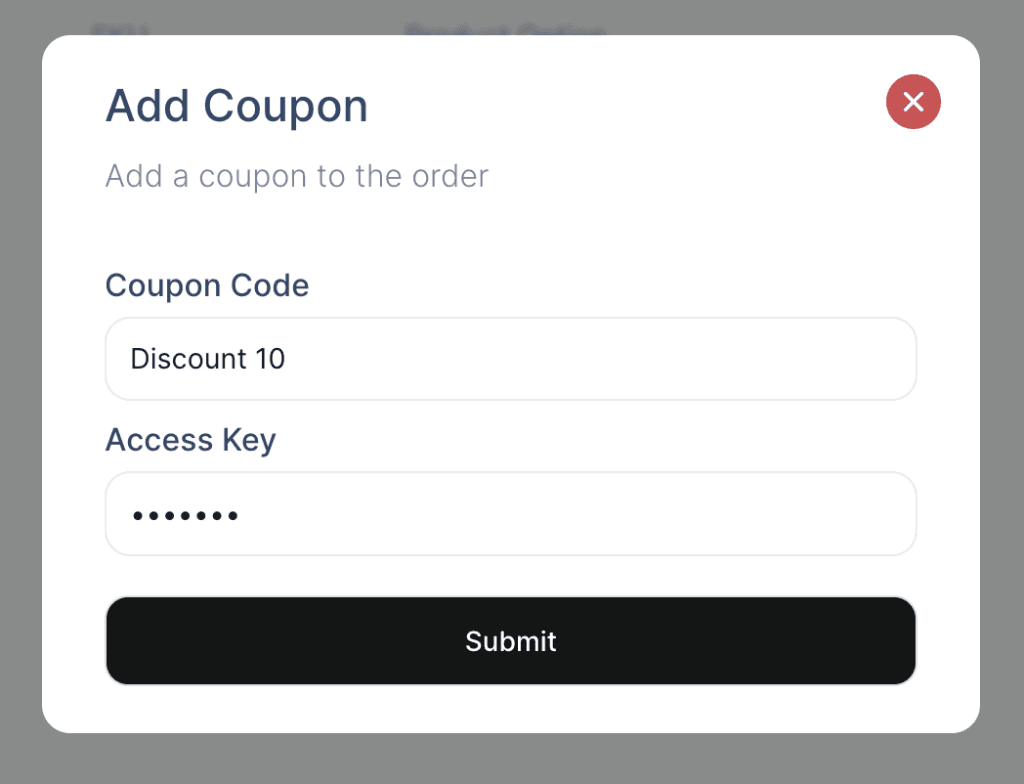
Add Order Coupon
Click on the Add Order Coupon button to apply a coupon to the existing order. Enter the Coupon Code and your Access Key (used to track who applied the coupon). Based on the coupon’s definition, the corresponding discount amount will be automatically applied to the order.
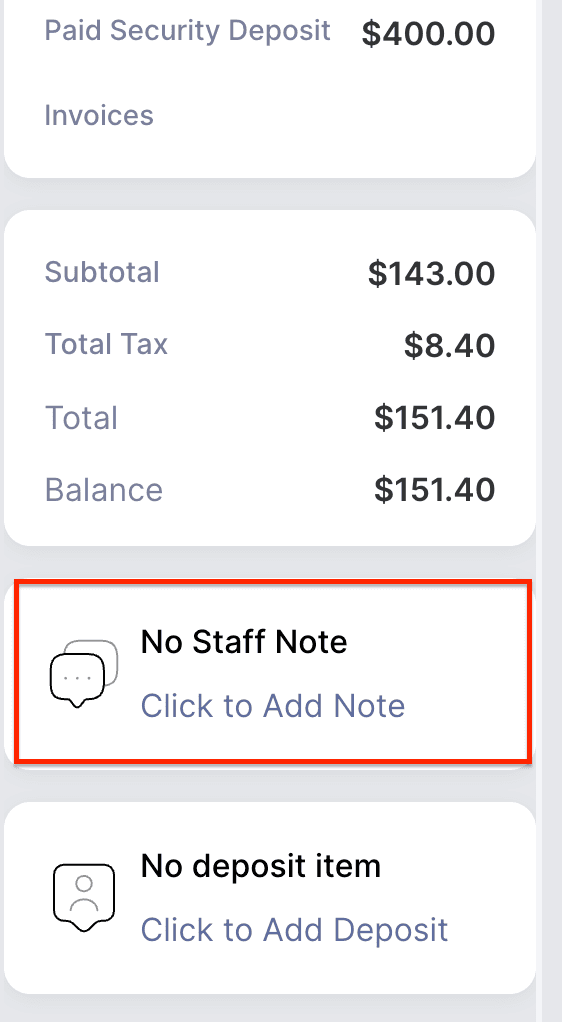
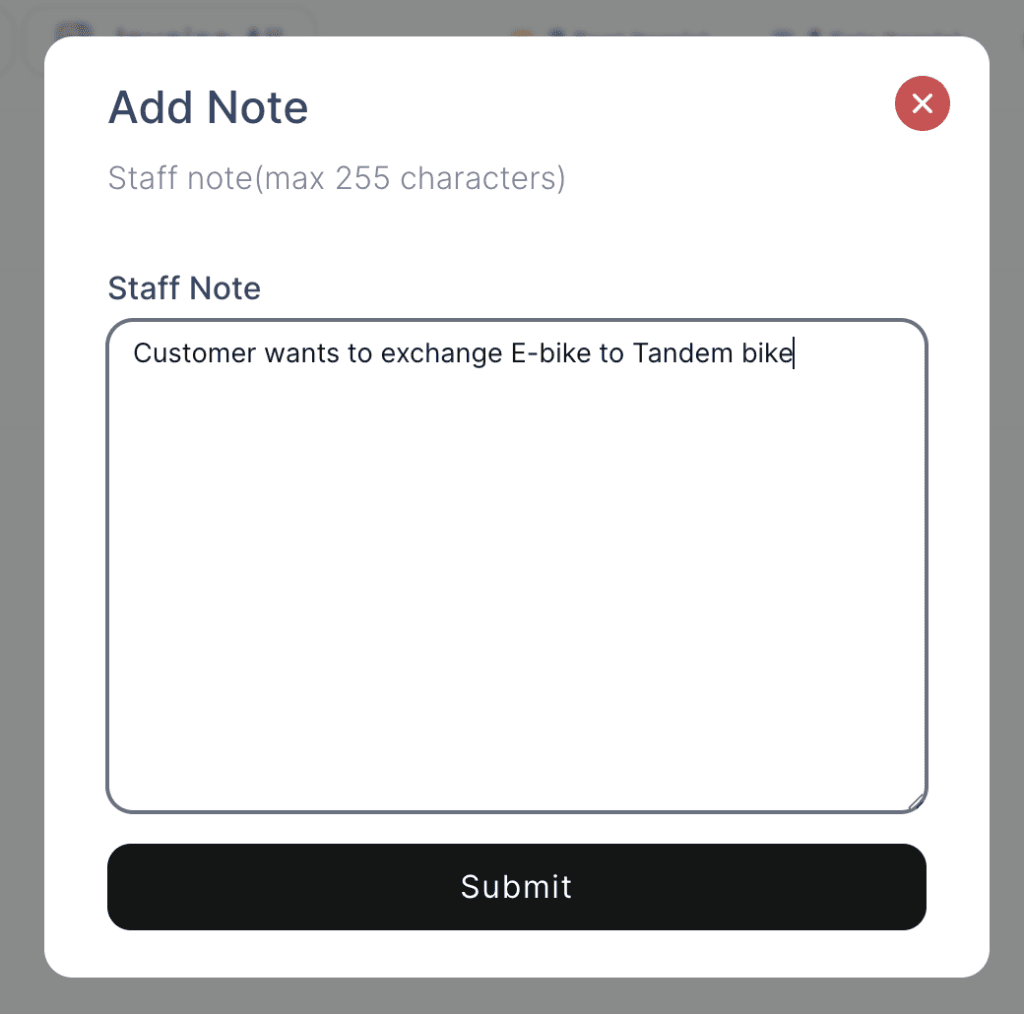
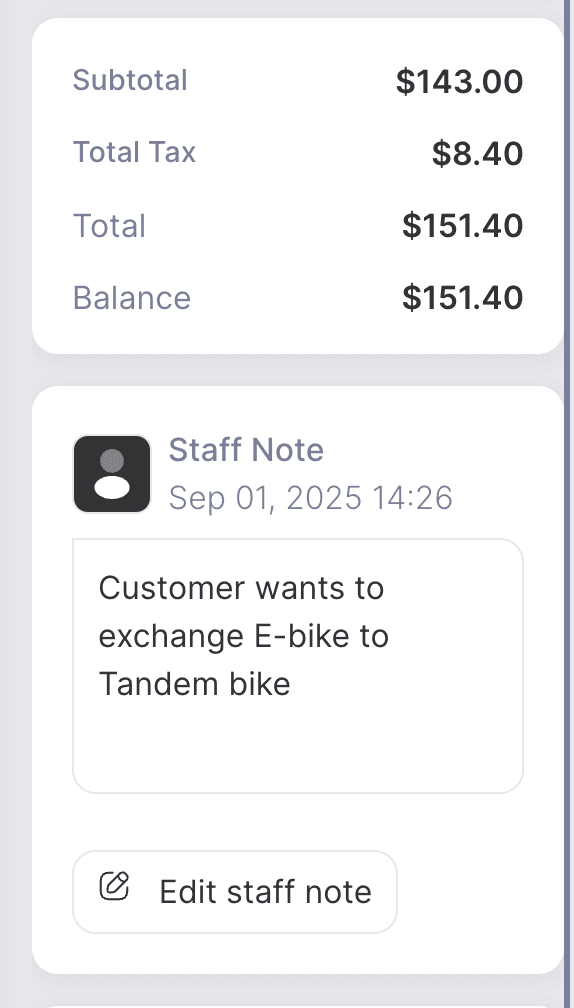
Staff/Customer Note
Notes can be added by both customers and staff.
- Customer Notes: Collected at the time of reservation through the reservation page.
Staff Notes: Added after the reservation has been created, for internal tracking or additional details.
Deposit Item
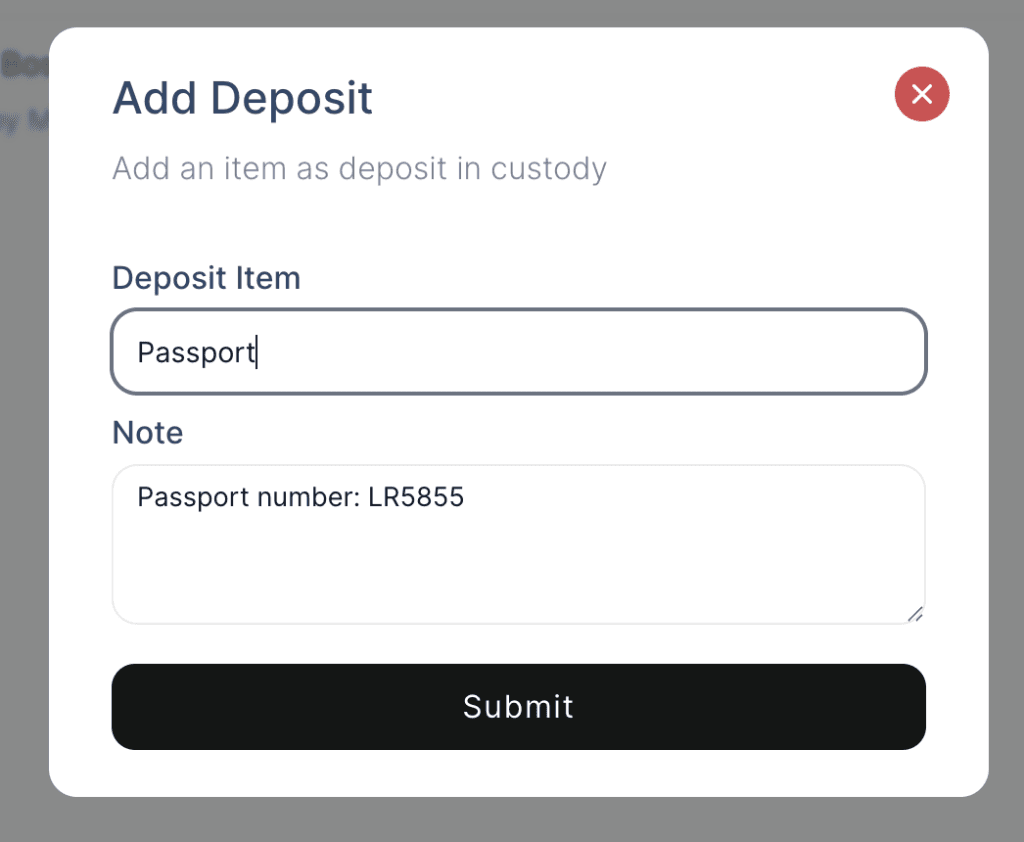
A physical deposit item can be collected for safety reasons, such as preventing loss, theft, or damage of equipment. Deposit items can include a driver’s license, passport, or any other valid ID proof.
When the rented items are returned, the system will display a warning message reminding staff to return the deposit item to the customer. The order cannot be closed until the deposit item has been returned.
Order Logs
Logs provide a record of all actions performed on an order. This includes activities such as changes to the rental period, adding new items, applying coupons, collecting payments, issuing refunds, and more. Logs help track who performed each action and when, ensuring complete visibility of the order history.

Three-Dot Menu
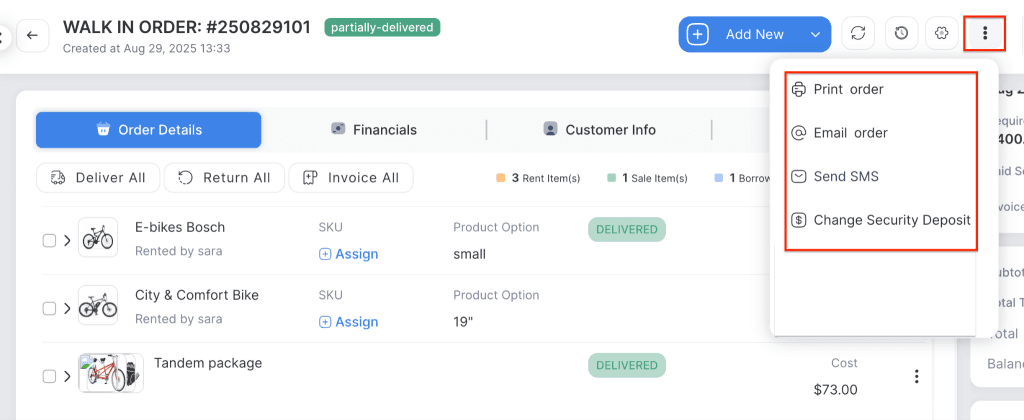
Click on the three-dot menu to print the order, send an email/SMS to the customer, or override the security deposit amount.
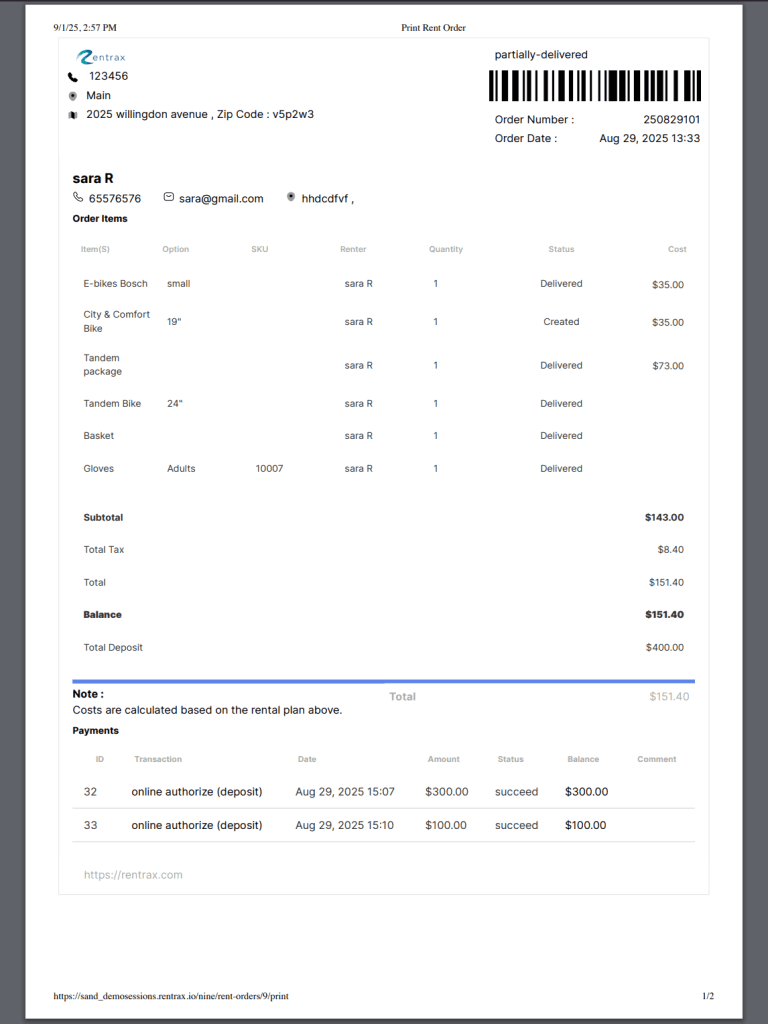
Print Order
Click the Print Order button to print the order receipt for the customer.
Email Order
Click the Email button to manually send the order email to the customer.
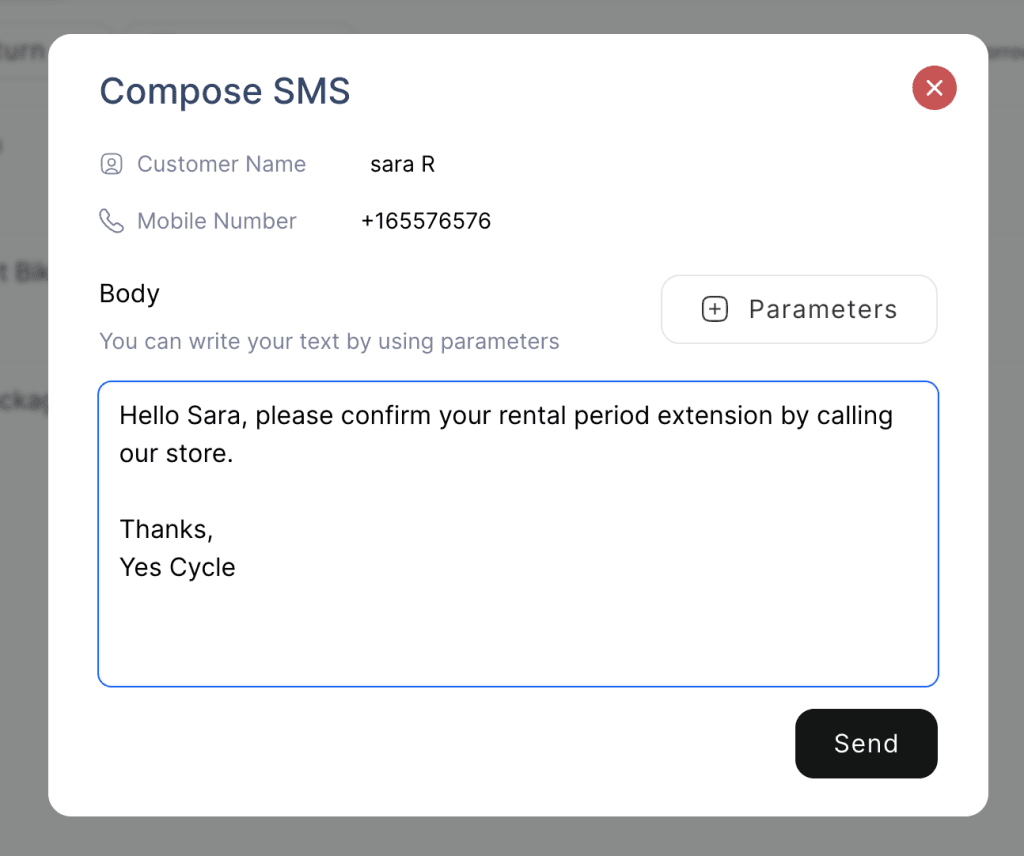
Send SMS
Click the Send SMS button to send a personal message to the customer. You can type the message directly or use parameters to include dynamic information.
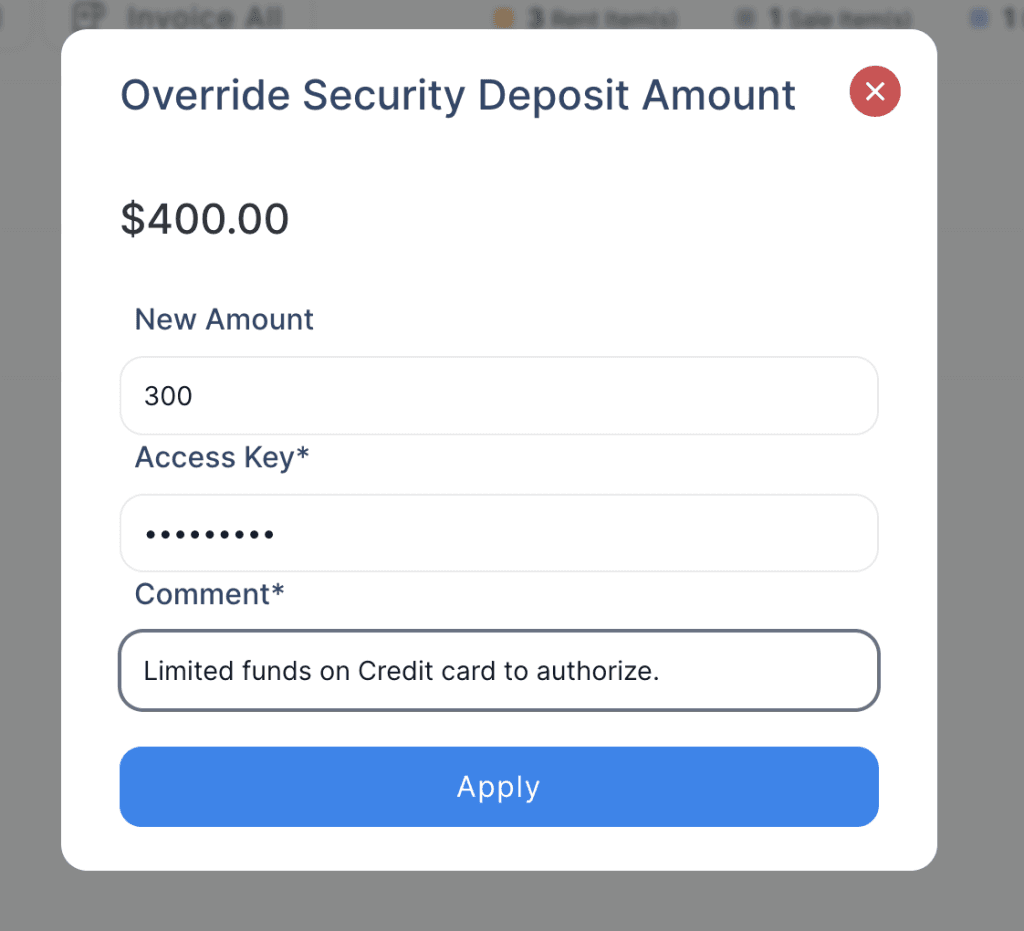
Change Security Deposit
Click the Change Security Deposit button to override the deposit amount. The amount can be increased or decreased based on the current value. Enter the access key to track who performed this action and add a comment to record it in the reports.
Explore Related Articles:
Rent orders “Customer Info” & “Attachments” tabs
Invoice management