
Sample Order Processing
Go to the Orders and click on “Rent Orders” to process a order.
In the Order view, there are four tabs that display detailed information about the order.
Order Details
Refer Rent Order Processing- 1 article to know more about “Order Details”.
Financials
The Financials tab allows you to generate invoices, collect payments, and manage security deposits or refunds.
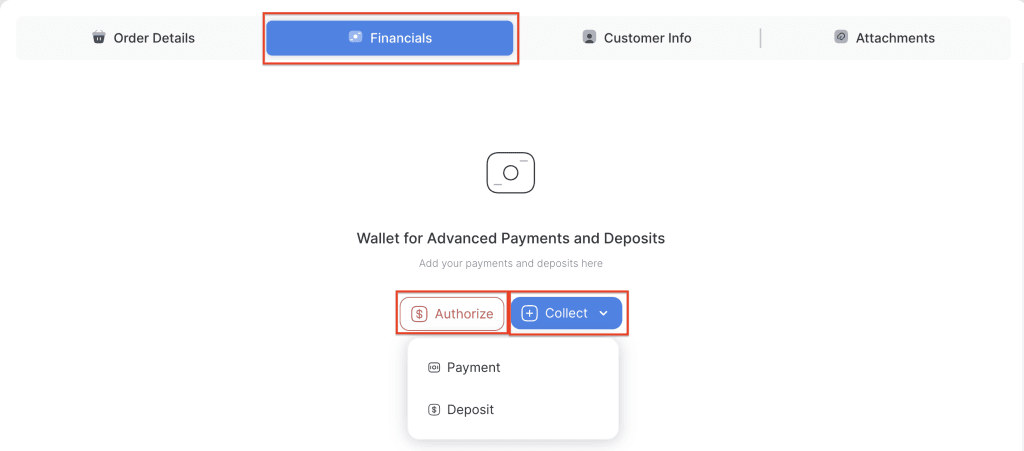
Go to the Financials tab. There are two ways to collect payments: directly on the wallet (when no invoice has been generated) or on the invoice. In this example, no invoice has been created yet.So, the payments goes into the wallet.
Use the Authorize button to authorize the customer’s card for the security deposit. Then, use the Collect dropdown to collect payments, such as the deposit as a payment or the full payment.
Authorize Card For Security Deposit
There are three way to Authorize the customers card for security deposit.
- Automatically Authorize the card: When items are delivered to the customer, the card saved on their profile will be automatically authorized for the security deposit.
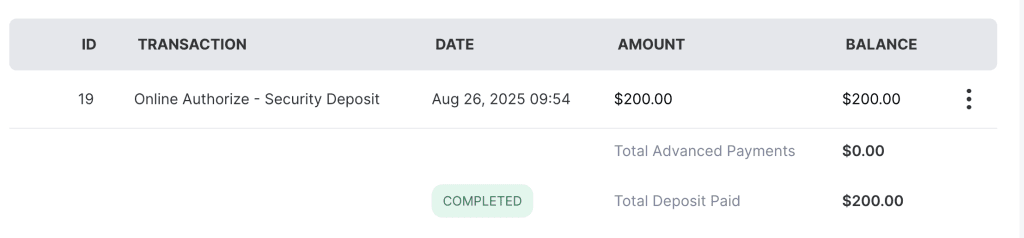
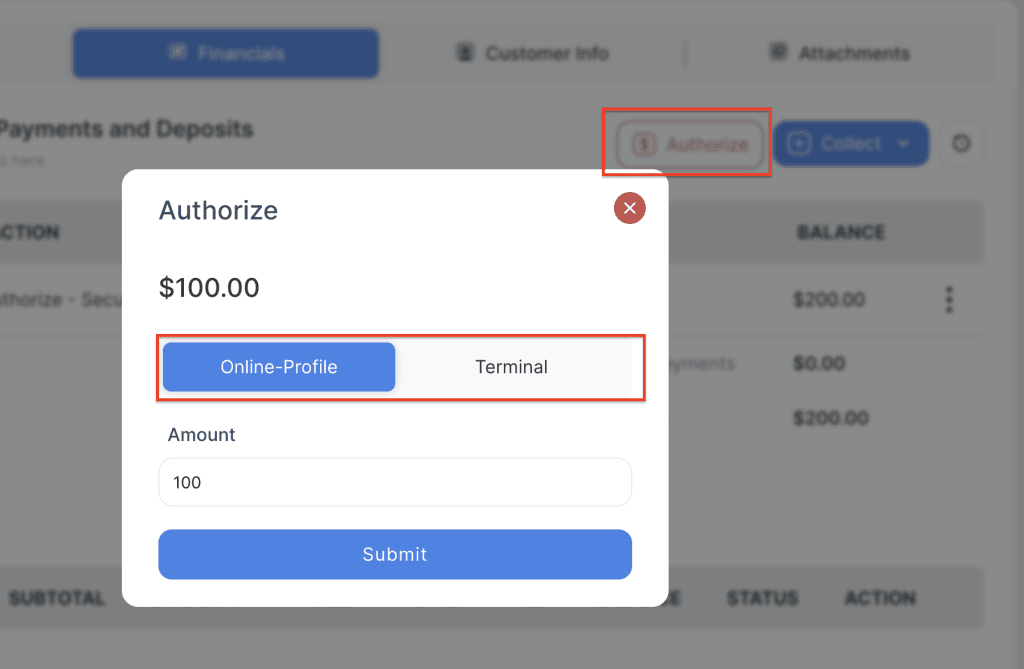
2. Manually Authorize the card: Before delivering items, staff can click the “Authorize” button and choose:
Terminal → Tap or swipe a different card in-store.
Online Profile → Use the existing card saved on the customer’s profile.
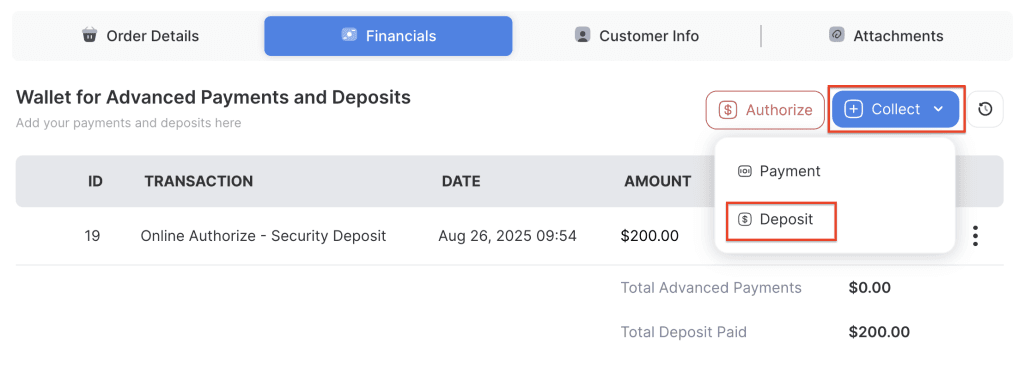
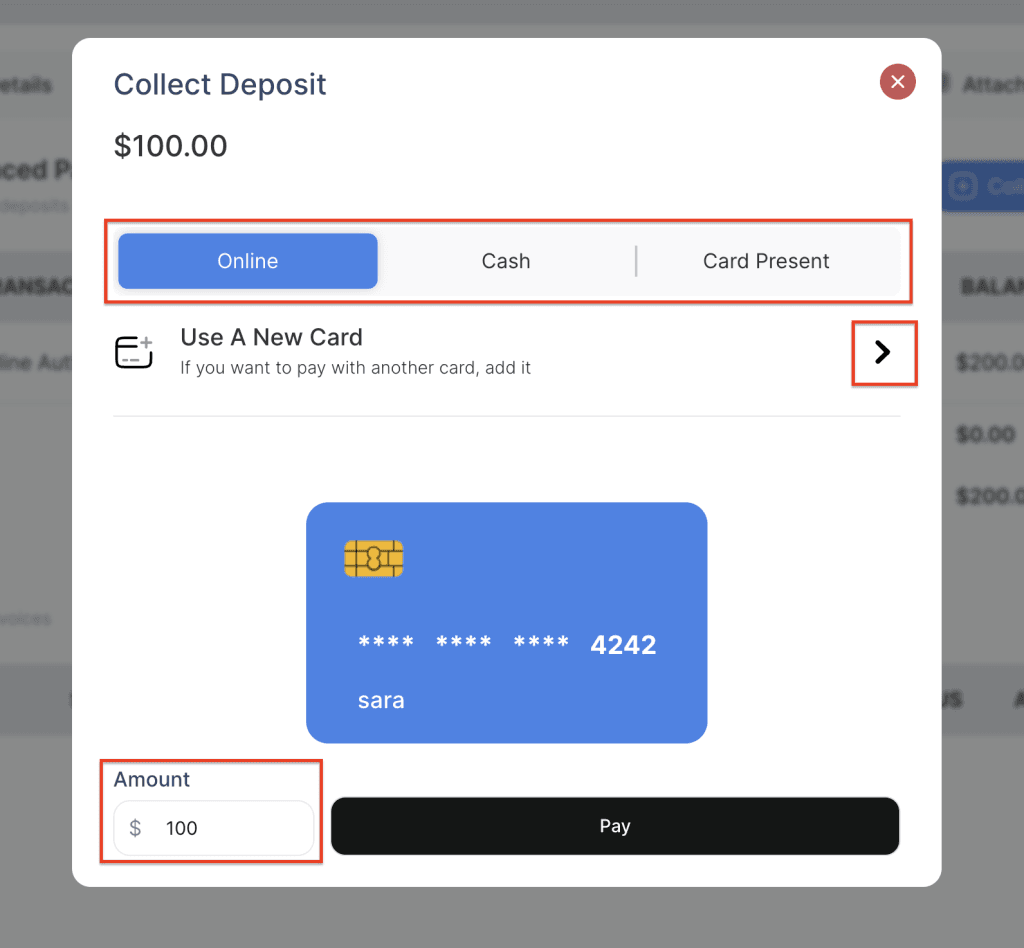
3. Collect cash as deposit: Click on the “Collect” dropdown and choose “Deposit” button. Use the saved card on file or Add a new card for the deposit. Select the Cash tab to take deposit in cash or use the in-store terminal device to process the deposit.
4. Override security deposit
Collect Payment
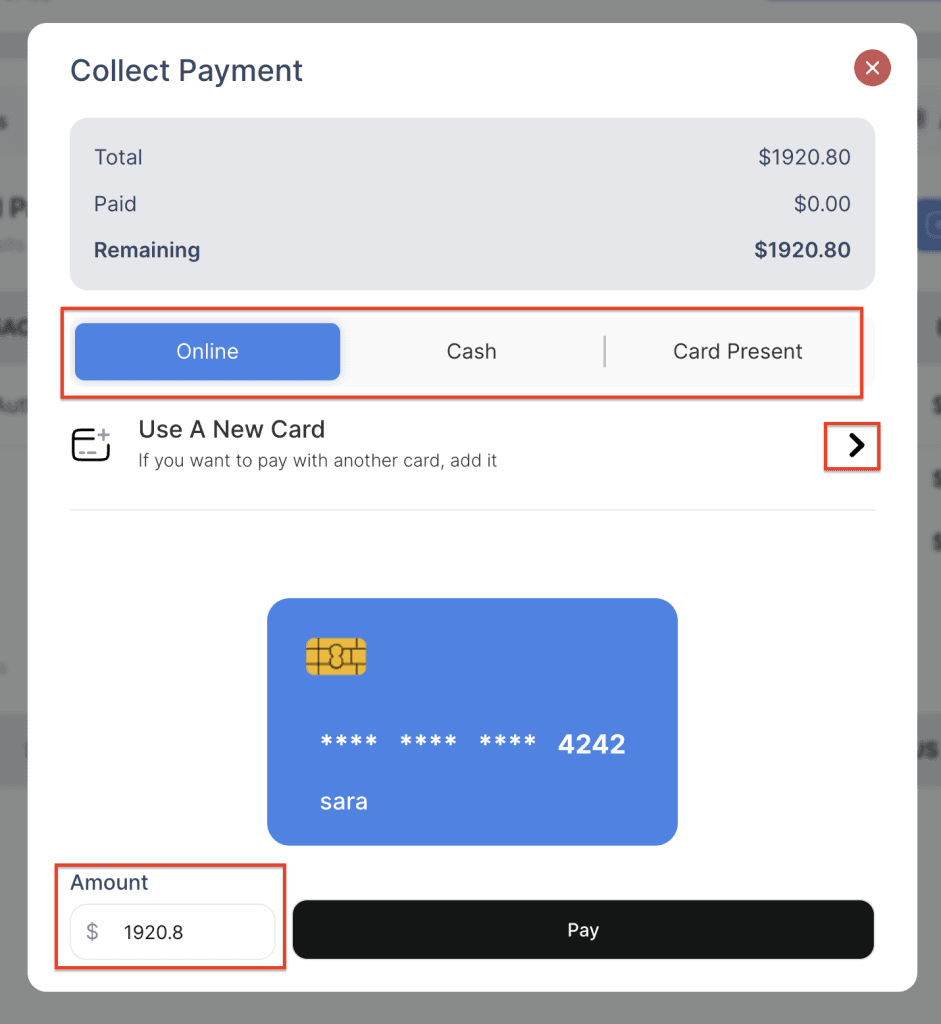
- Collect Payments on Wallet: Click on the “Collect” dropdown and choose “Payment” button. Use the saved card on file or Add a new card for the payment. Select the Cash tab to take the payment in cash or use the in-store terminal device to process the payment.
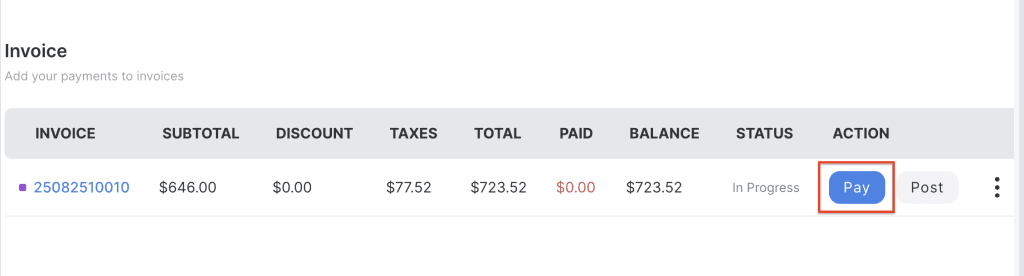
2. Collect payments on Invoice: Once the invoice is generated, click on the pay button on the invoice. Use the saved card on file or Add a new card for the payment. Select the Cash tab to take the payment in cash or use the in-store terminal device to process the full payments or partial payments.
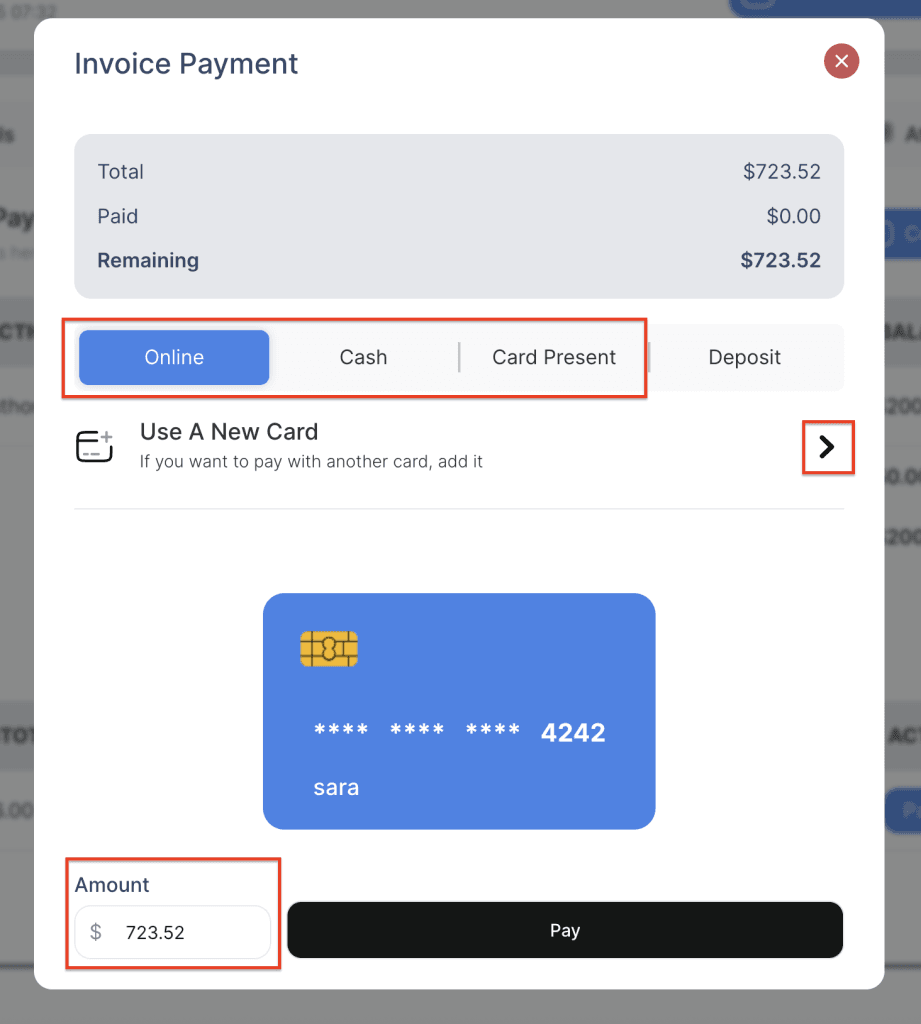
3. Collect payments with Deposit: Collecting payments from deposits is only available through the invoice. To apply a deposit, open the invoice and go to the Deposit tab. If there are multiple deposits, select the one you wish to use and then click the Pay button. The deposit amount can be applied either as a partial payment or as a full payment toward the invoice.
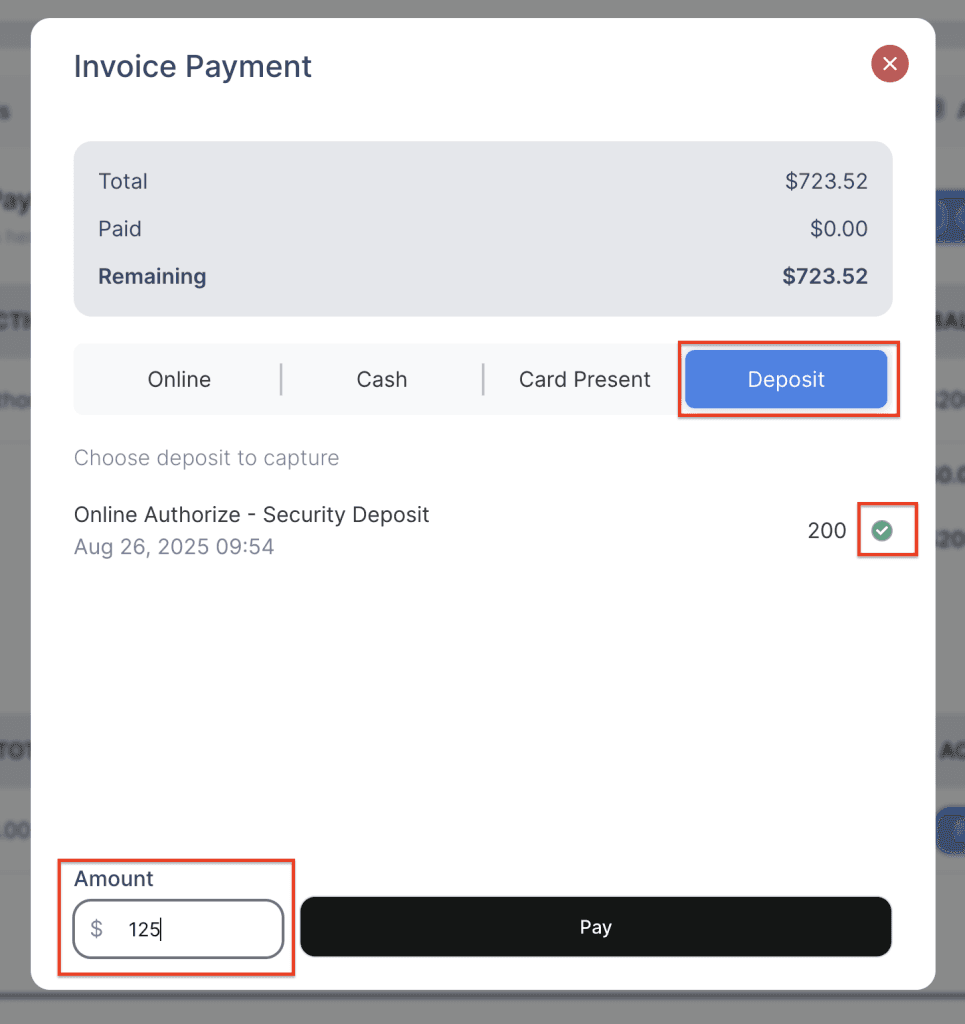
NOTE: When a payment is collected from a deposit and only a partial amount is used, the remaining deposit balance will be automatically voided.

Add wallet payments to Invoice
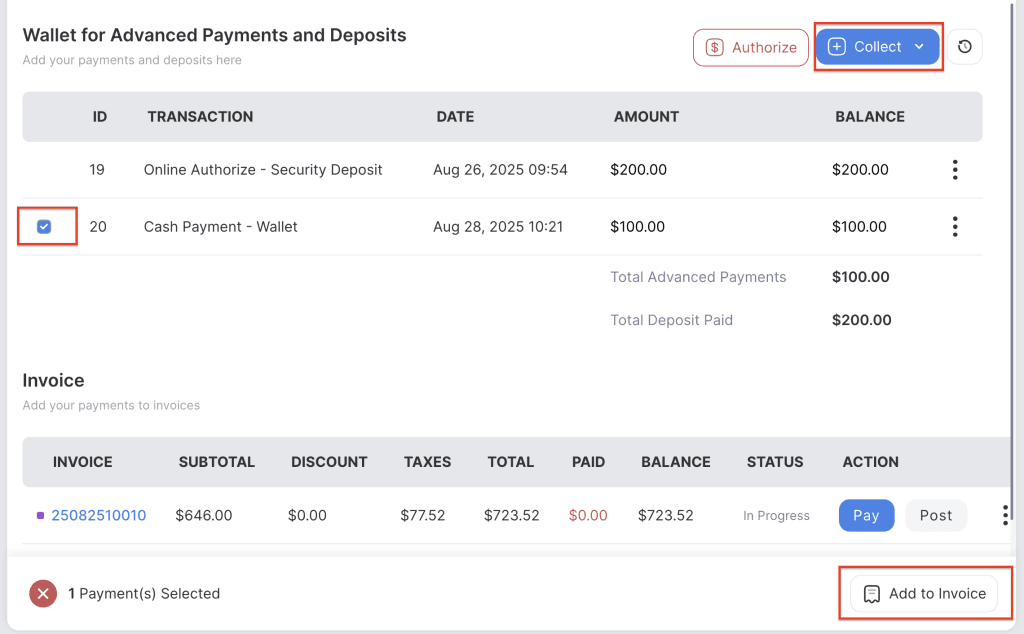
When payments are collected using the Collect button, the amounts are stored in the wallet. At the end of the order, to balance the invoice and close it, these payments need to be applied to the invoice.
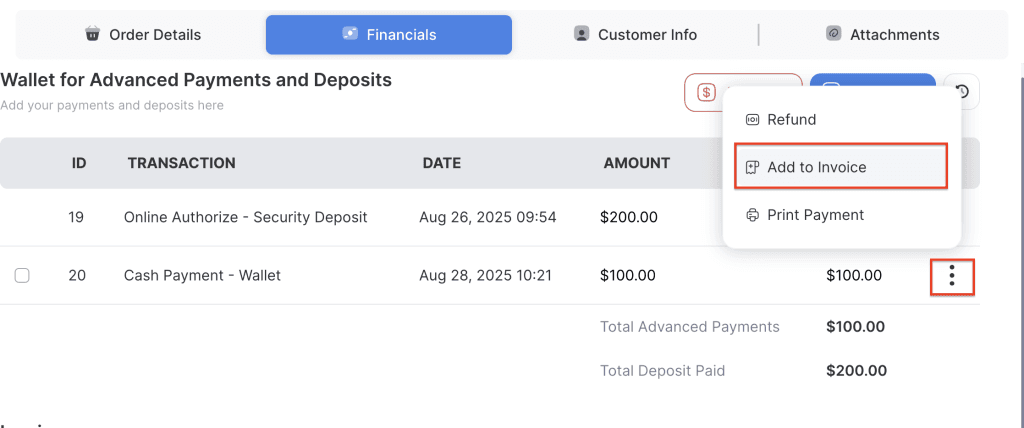
There are two ways to add payments to an invoice. The first way is to click on the payment checkbox, select the payments that should be added, and then click on the Add to Invoice button. The second way is to click on the three vertical dots menu and select the Add to Invoice option.
Option 1
Option 2
Refunds
Refunds can be issued directly from the Invoice or Wallet by selecting the payment and choosing the Refund option. The refunded amount will be returned to the same card used for the original payment, or processed in cash if cash was the payment method. For accurate tracking, the system records the staff access key of the person who processed the refund.
1. Void the authorized amount
An authorized deposit amount can be voided in two ways:
Automatic Void – Once items are returned, the authorized amount will be automatically voided within 5–7 business days.
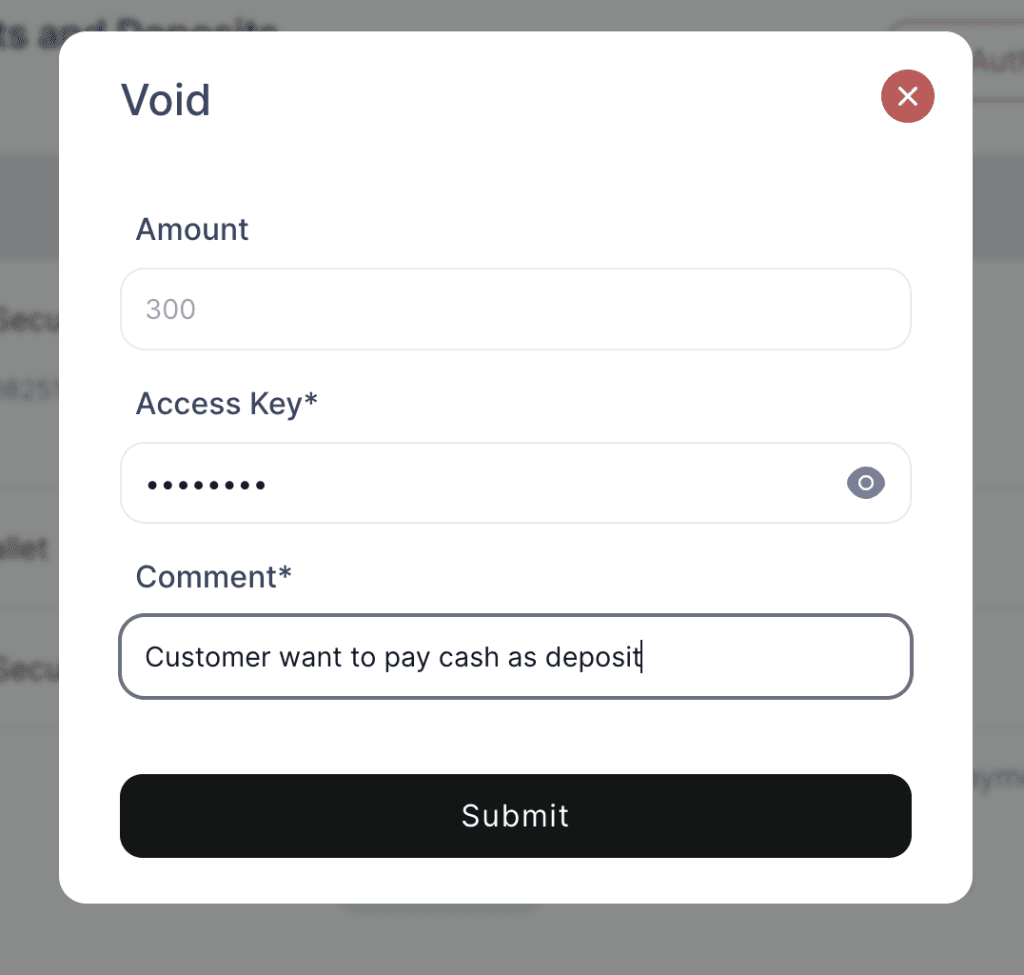
Manual Void – Click the Void button to cancel the deposit authorization.
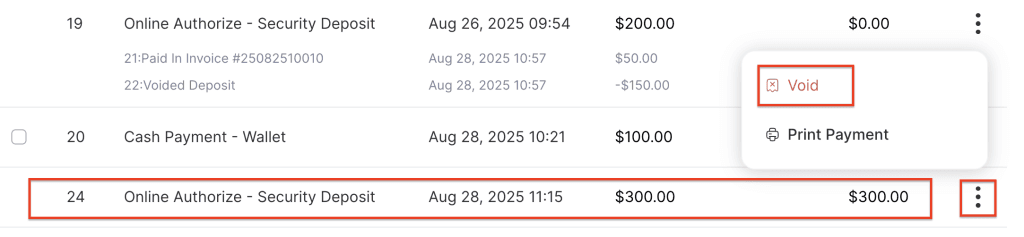
To manually void a deposit amount, enter the staff access key, add a comment, and then click the Submit button. This ensures proper tracking of who voided the deposit and why.
NOTE: Full amount will be voided

2. Refunds on Wallet
3. Refunds on Invoice
Explore Related Articles:
Rent orders “Customer Info” & “Attachments” tabs
Rent orders “Financials” tab
Invoice Management