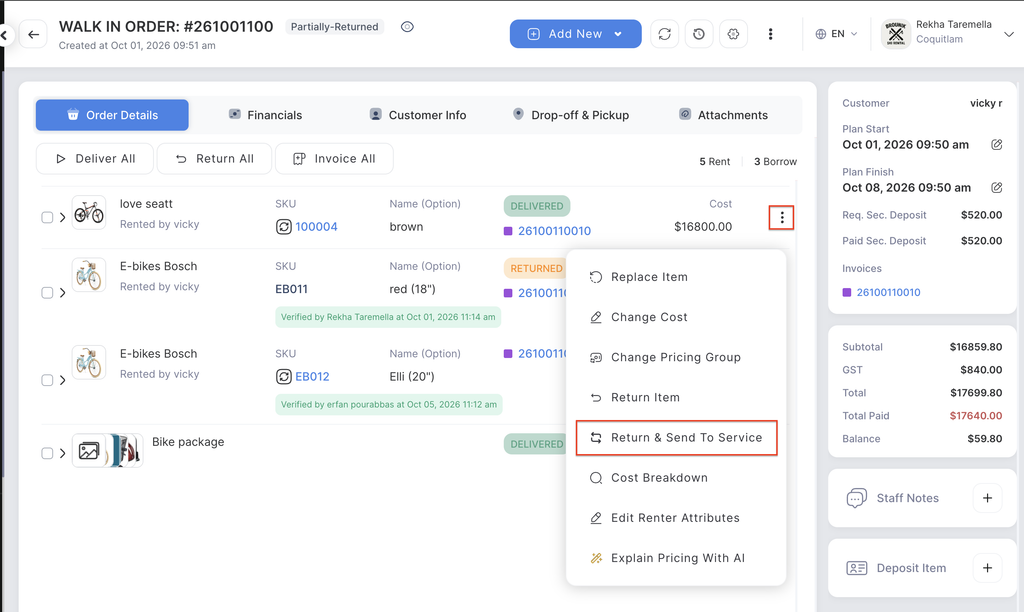
There are two ways to send one of your rental units to service:
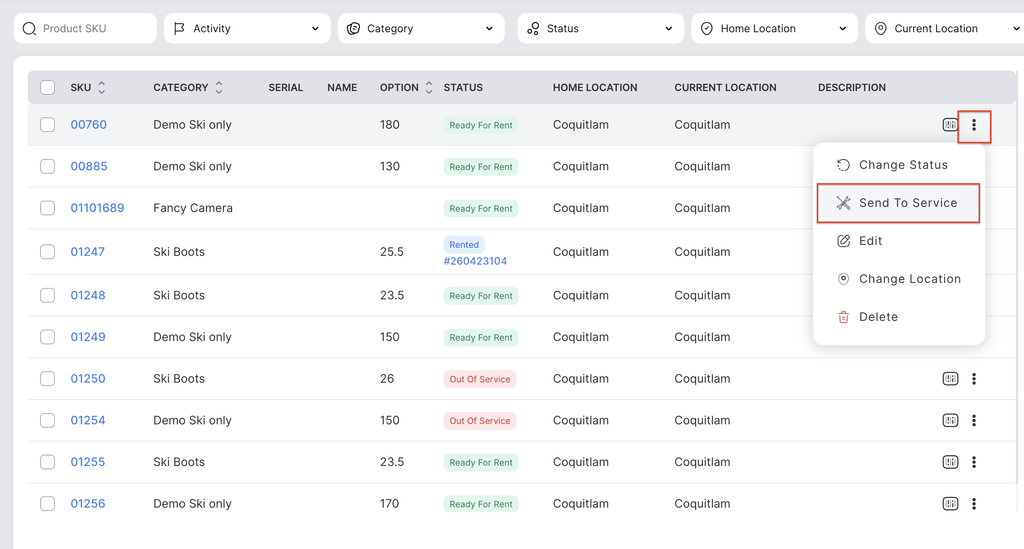
1. From Rent Inventory
This is the main route when you notice a product needs service:
- Go to Rent Inventory (your SKU-based rental inventory)
- Find the SKU that needs service
- Click on the three dot menu and choose Send To Service (available on the edit product detail page or from the scanner)
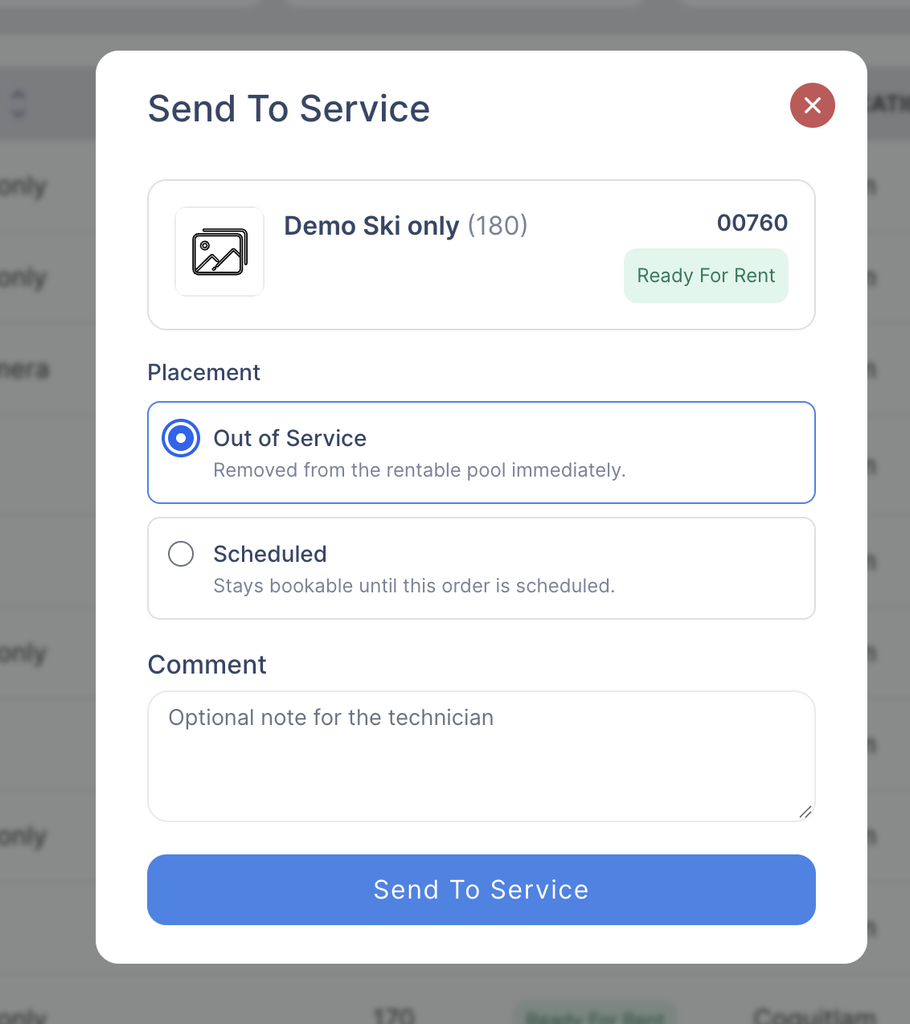
4. You’ll see a form asking for:
- Placement mode — choose one:
- Out of Service — pulls it out immediately, stays unavailable until repair completes
- Scheduled — unit stays bookable except during the repair window
- Optional comment — describe what’s wrong (like a customer’s/technician intake comment)
5. Warning about displaced bookings: If the unit is already promised to upcoming reservations, the system will show you which orders will be affected before you confirm. Those orders will be quietly unassigned from this unit.
The order is created immediately and lands in Assessment status, ready for your technician to look at.
2. Return & Send to Service
When a rental comes back and needs work:
- You’re processing a rent return for a customer
- Instead of just Return, choose Return & Send to Service
- Same placement mode choice and comment field
- The unit is returned to the customer’s order and a fleet repair order is created.