
The Edit Item feature allows you to replace an existing item in an order with another item. However, this function only works when both items have the same pricing.
Example:
If a customer originally rented Adult Skis for $40/day, you can use the Edit Item option to replace them with Adult Snowboards priced at $40/day.
If the replacement item has a different price, the system will not allow the change.
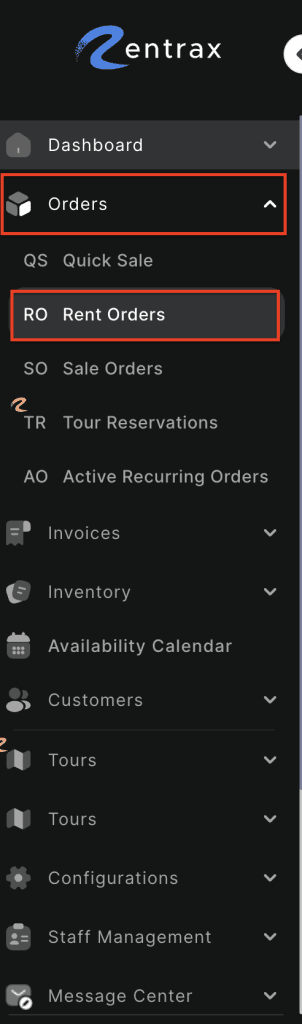
- Log in to your rental platform. From the left-side menu, select Orders → Rent Orders.

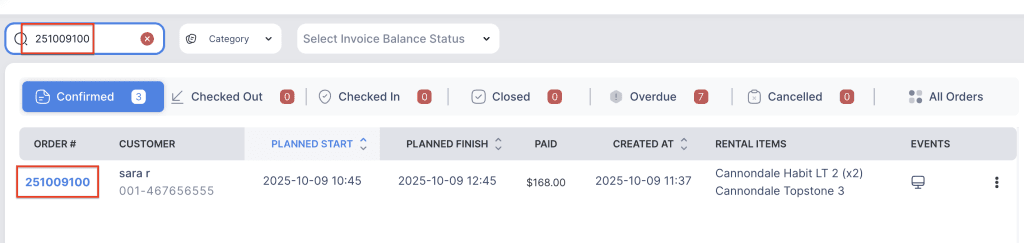
2. Search for the main customer name or order number in the search box.
3. Click on the Order Number to open the reservation.
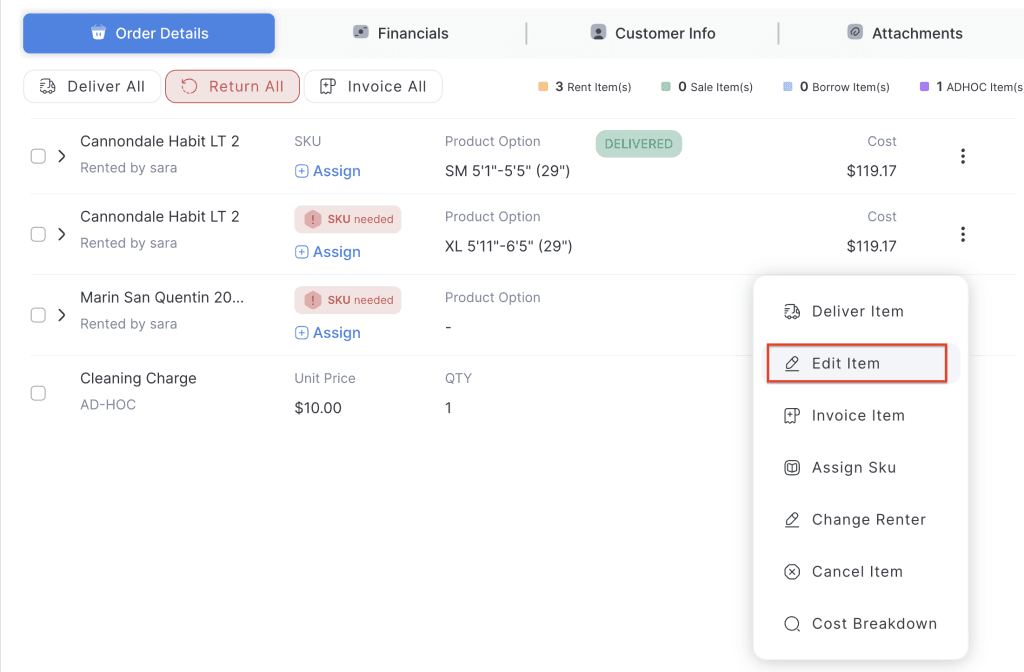
4. To perform an Edit item action, when the item is in either Pending or Confirmed.
5. Click the three-dot menu and select the Edit Item option.
6. Click the Category dropdown, select the Item with/without option, and then click the change button.
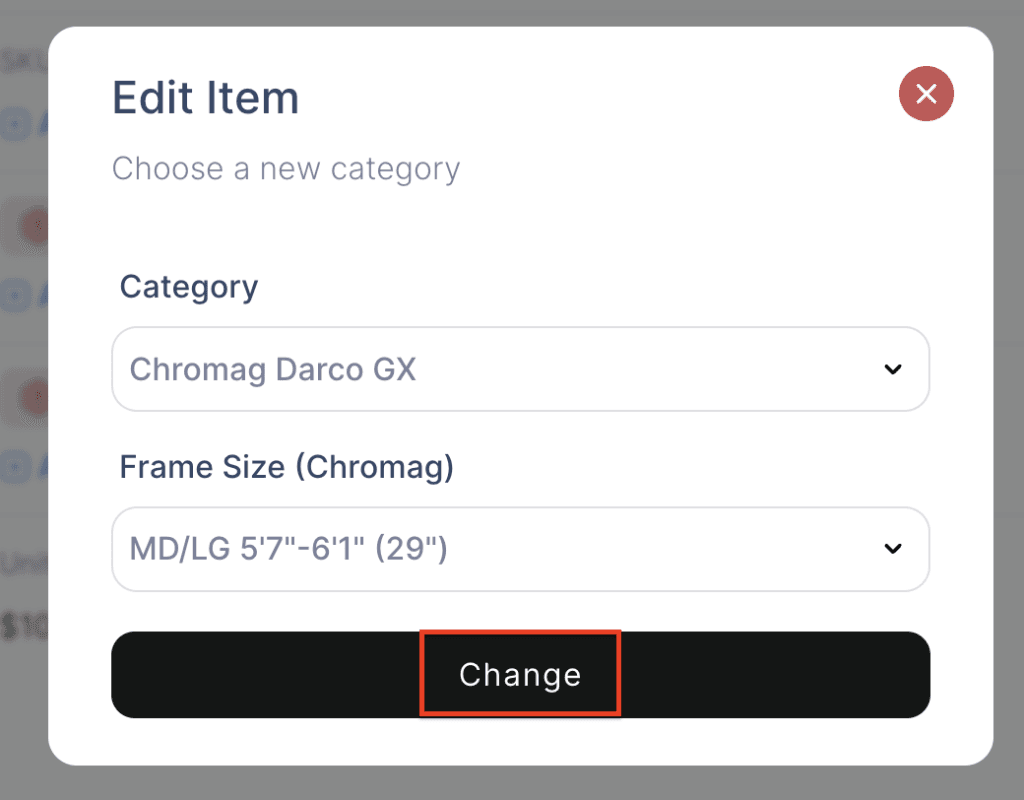
7. The status of the first item will change to replaced item, and the new item will be added to the order.