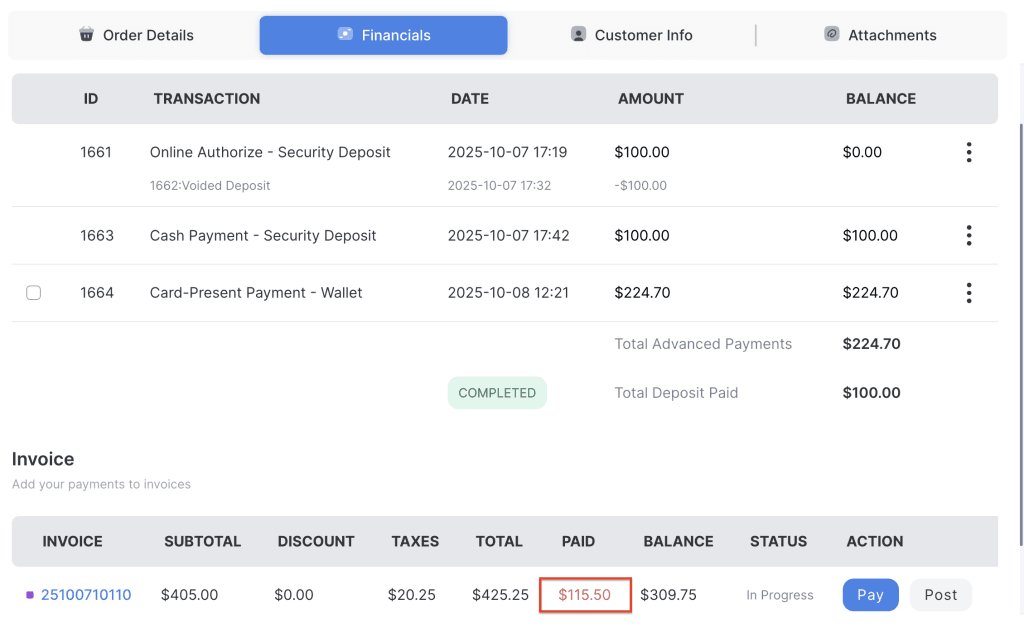
The Add Payment to Invoice feature allows businesses to apply payments that were collected without an invoice (standalone payments) to a newly created or existing invoice. Payments can be added manually or automatically based on the system settings, ensuring that all transactions are properly recorded and linked to the corresponding order or customer account for accurate tracking and reporting.
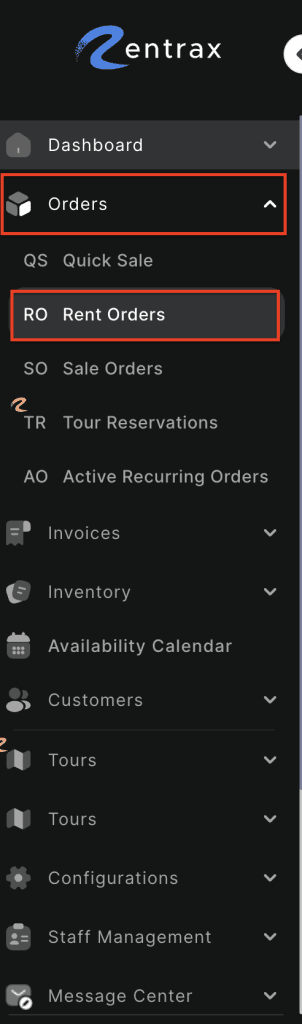
- Log in to your rental platform. From the left-side menu, select Orders → Rent Orders.

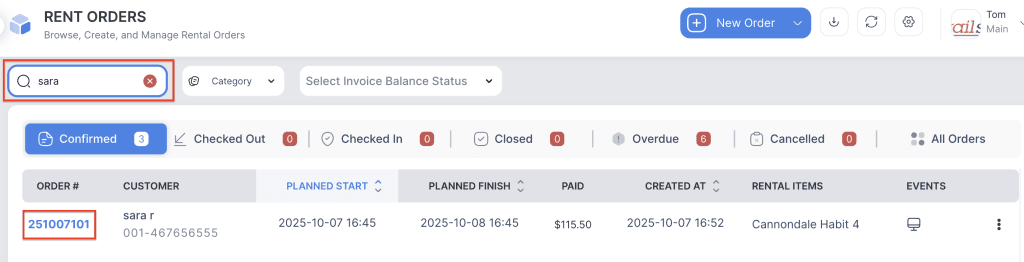
2. Search for the main customer name or order number in the search box and click on the Order Number to open the reservation.
3. Go to the Financials tab.
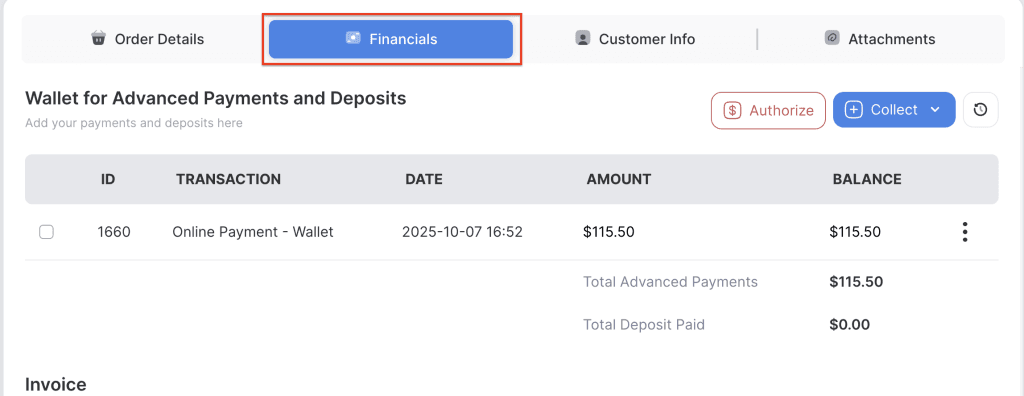
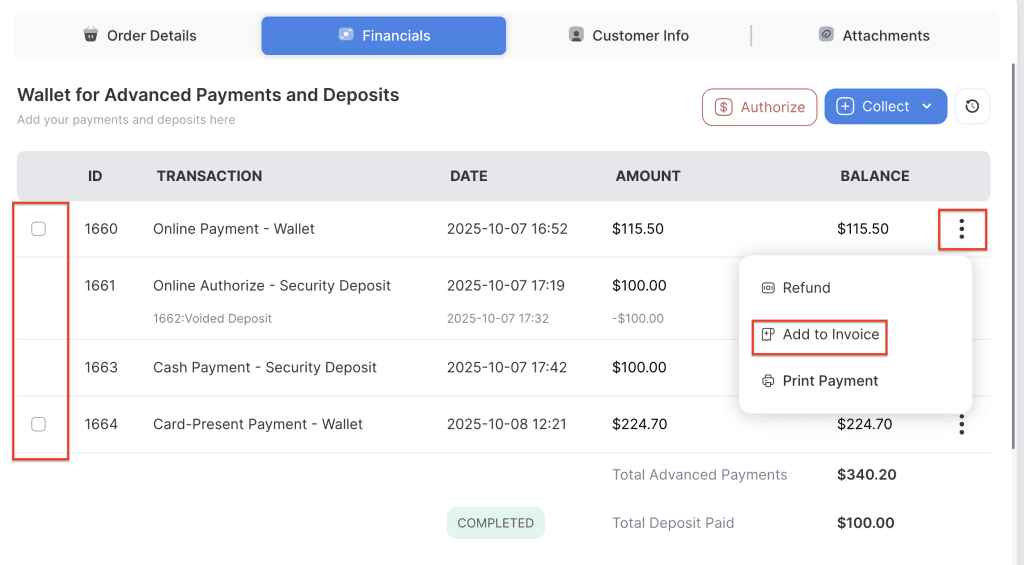
4. Select the payments by clicking the checkbox, or use the three-dot menu and choose the Add to Invoice option.
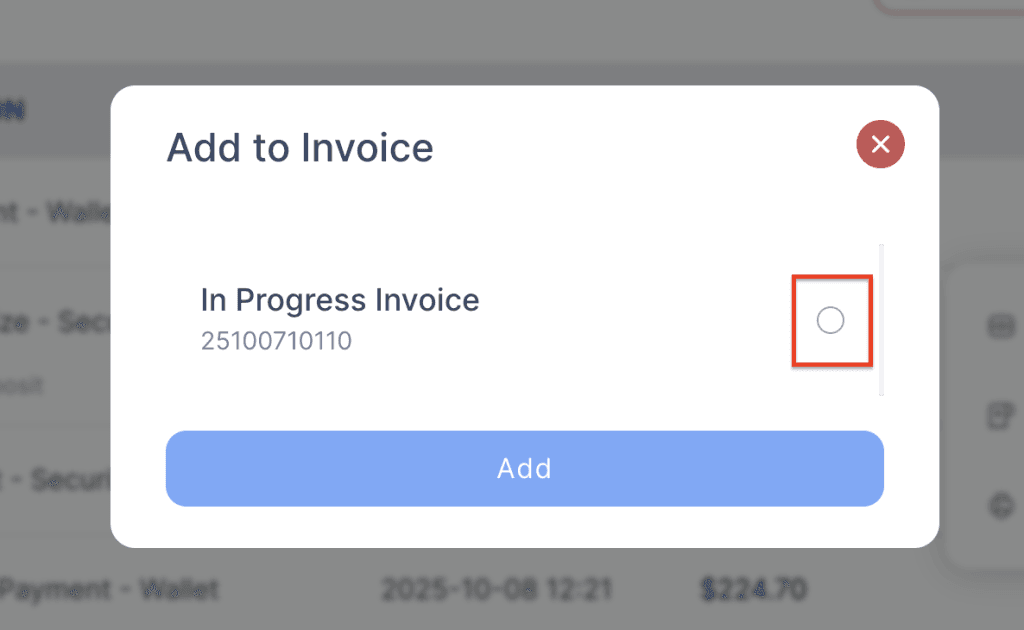
5. When multiple invoices are available, select the invoice to which the payment belongs, and then click the Add button.
6. As shown in the screenshot below, one of the payments has been successfully added to the invoice.