
The Update Additional Renters Attributes feature allows staff to edit the attributes of additional participants once an item is assigned to them, turning the participant into an active renter.
- Item-Dependent Attributes – Only attributes relevant to the assigned item will appear for selection (e.g., boot size for ski rentals, driver’s license for golf carts).
- Participant Becomes Renter – When an item is assigned, the participant is officially treated as a renter, enabling attribute editing.
- Log in to your rental platform. From the left-side menu, select Orders → Rent Orders.

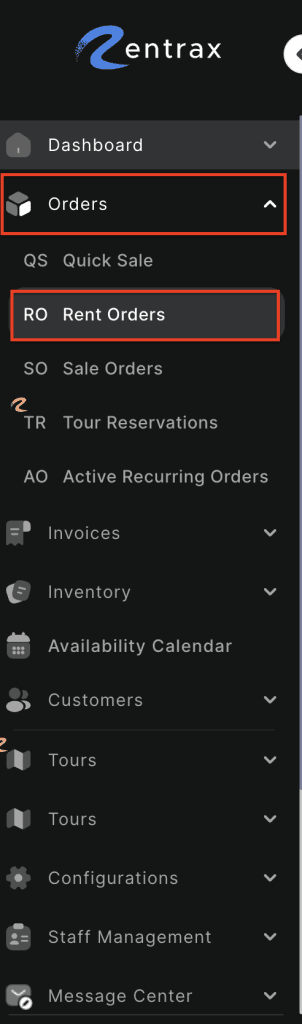
2. Search for the main customer name or order number in the search box.
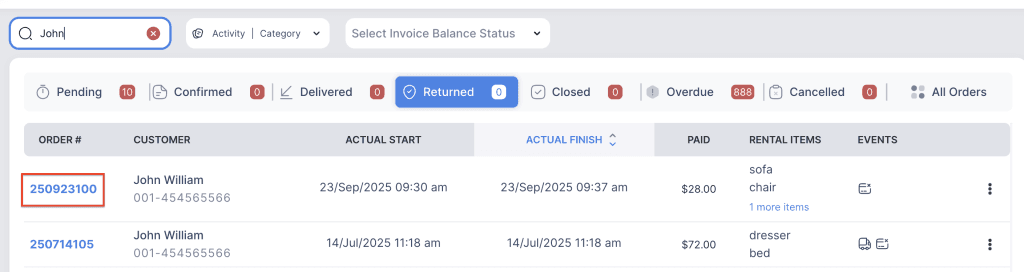
3. Click on the order number to open the reservation and go to Customer Info tab.

4. Click on the three-dot menu and choose Change renter button.
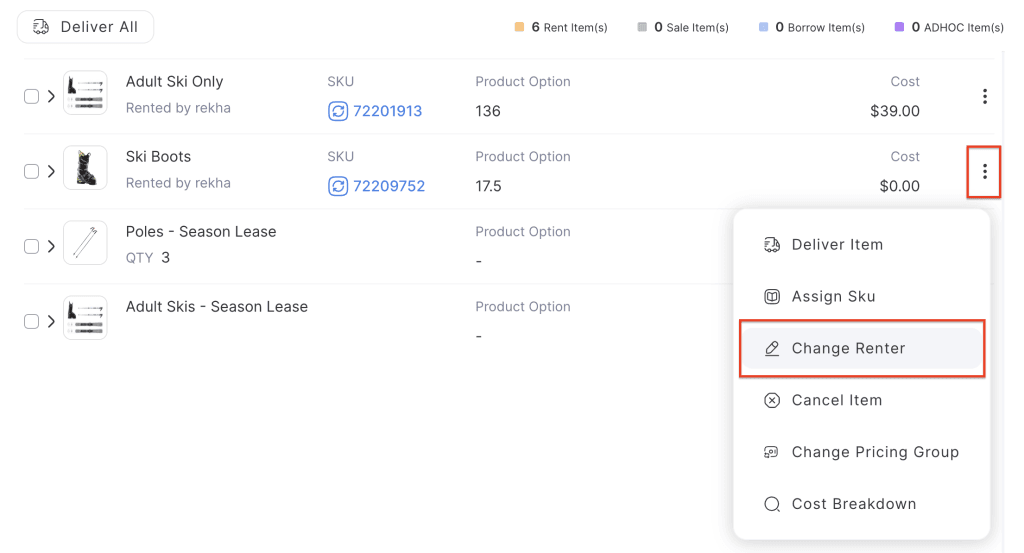
4. Select the participant – assign an item to the participant. Once the item is assigned, the participant becomes an active renter.

5. Go to Customer Info tab. Click the three-dot menu next to the participant and choose Edit Attributes.
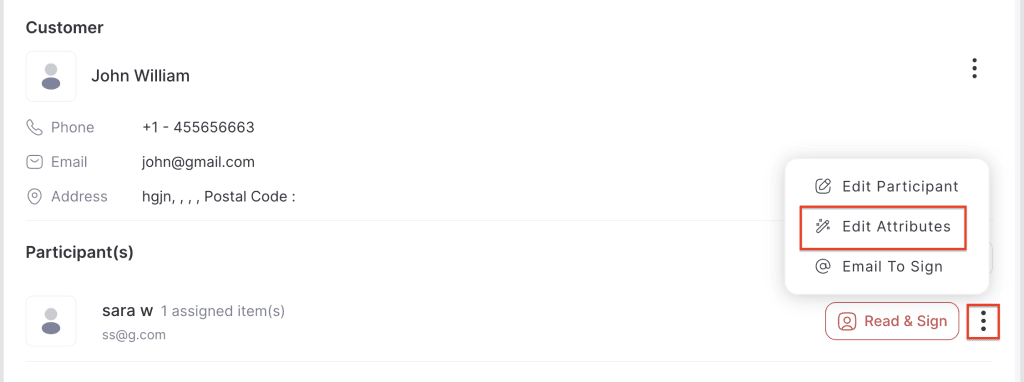
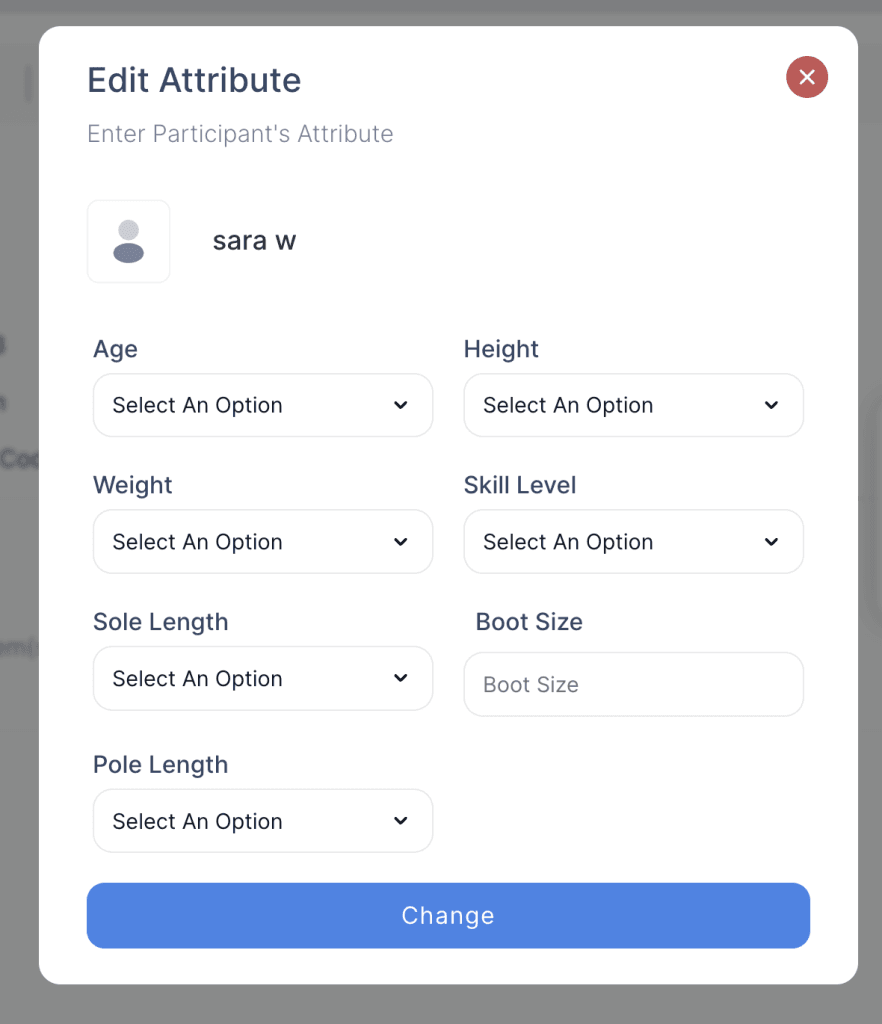
6. Select or modify the relevant attribute values based on the assigned item.
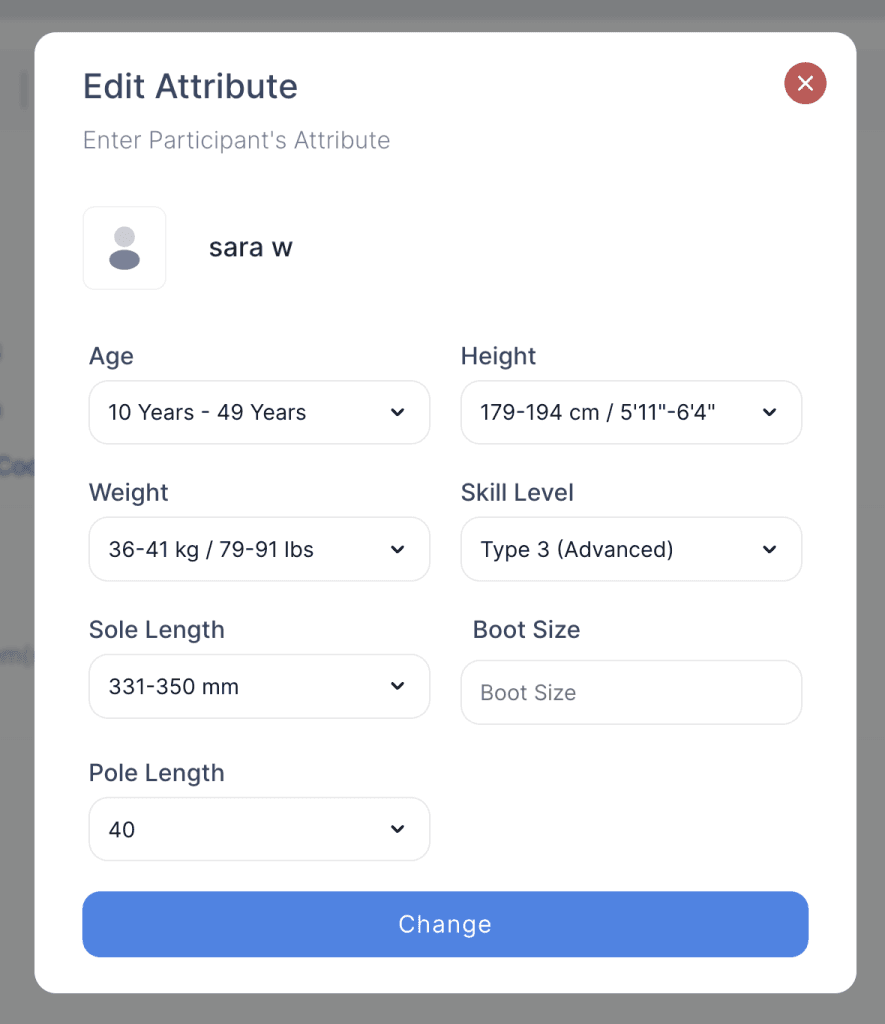
7. Click Save (or Change) to apply the updates.