
The Add Participant feature allows staff to include individual participants within an order. This is useful when multiple people are part of the same reservation. A participant can become a renter when an item is assigned directly to them.
This ensures accurate tracking of who is using the equipment and allows each participant to receive email notifications (such as waivers or confirmations).
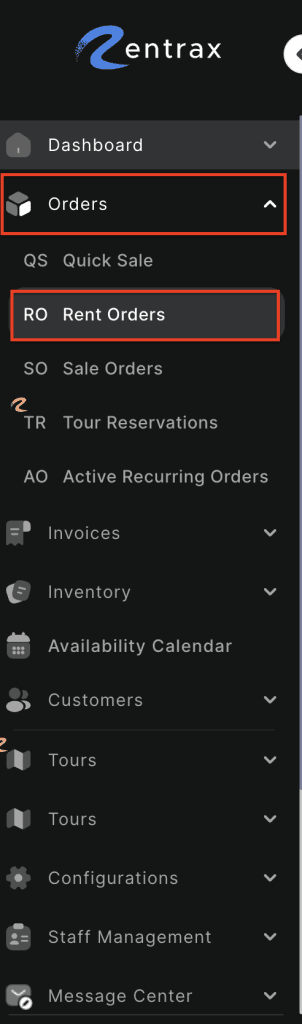
- Log in to your rental platform. From the left-side menu, select Orders → Rent Orders.

2. Search for the main customer name or order number in the search box.
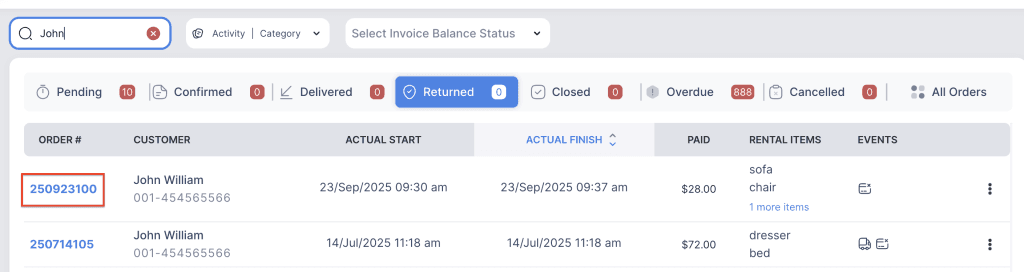
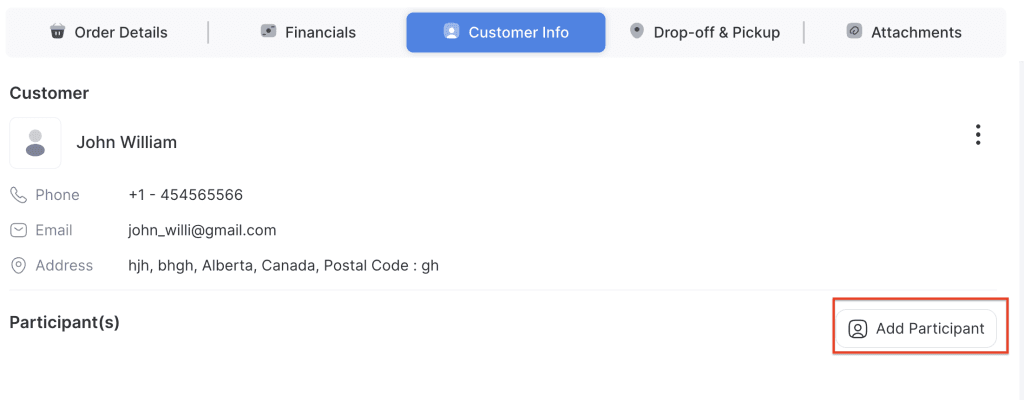
3. Click on the order number to open the reservation and go to Customer Info tab.

4. Click the Add Participant button.
5. Enter the participant’s name, email, and contact information.
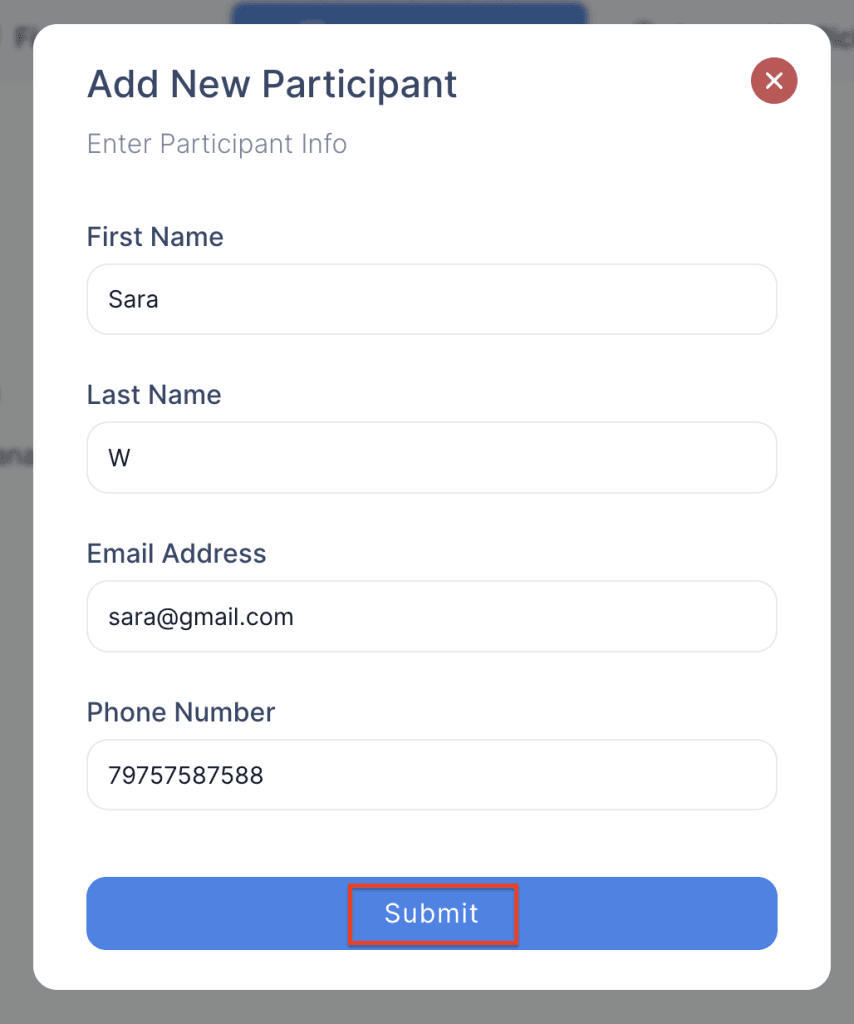
6. Click Submit to add the participant.
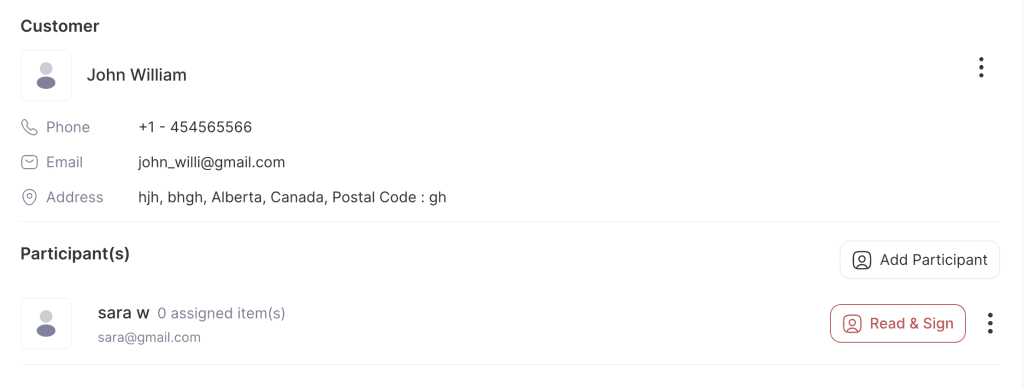
Once added, a participant can be assigned specific rental items. When an item is assigned to a participant, they effectively become a renter and can receive related notifications (such as waivers or confirmations).