
The Add by Scan feature allows you to quickly add items to an existing order by scanning a barcode/serial numbers or entering an SKU manually. This helps speed up order processing and reduces manual clicks.
How It Works
- Supports both rental and sale items
- Accepts SKU barcodes and serial numbers
- Items are added instantly upon scanning
- Ensures items match the same location and activity type as the order
- If an item is not available, the system will reject it and display the reason
Step-by-Step Instructions
- Open the order and click on the three dot menu.
- Choose “Add By Scan” and continue scanning the items one by one until all items are scanned.
- Select the assignee (required before scanning).
- Scan the item’s barcode using a scanner
OR
Type the SKU or serial number into the input field. - Press Enter.
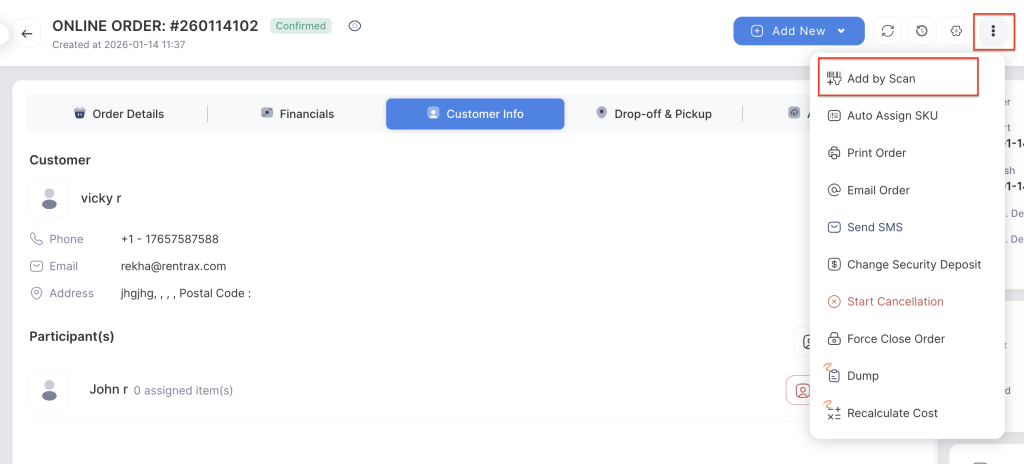
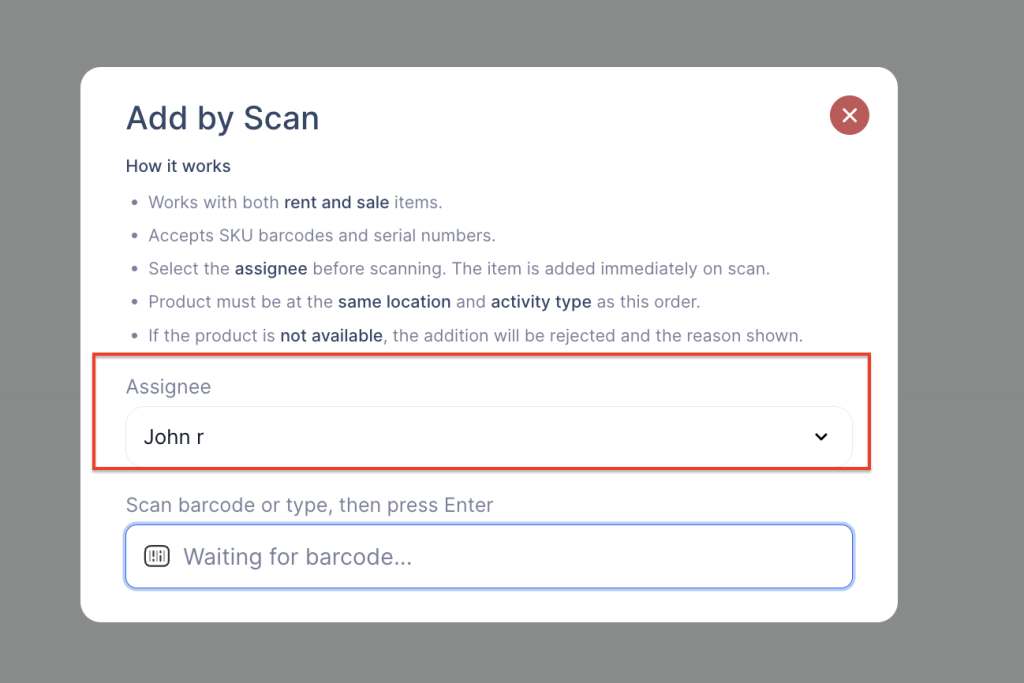
The item will be added immediately if all conditions are met.
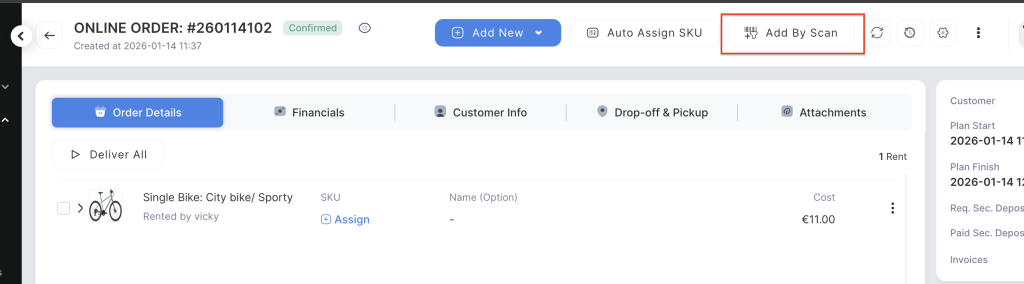
Pin control Buttons to the Order
- Click on the Setting gear and select the “Auto Assign SKU” from the order control buttons to pin to the top bar.
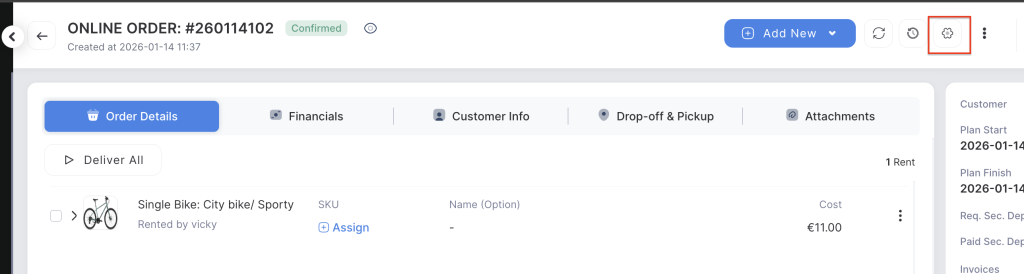
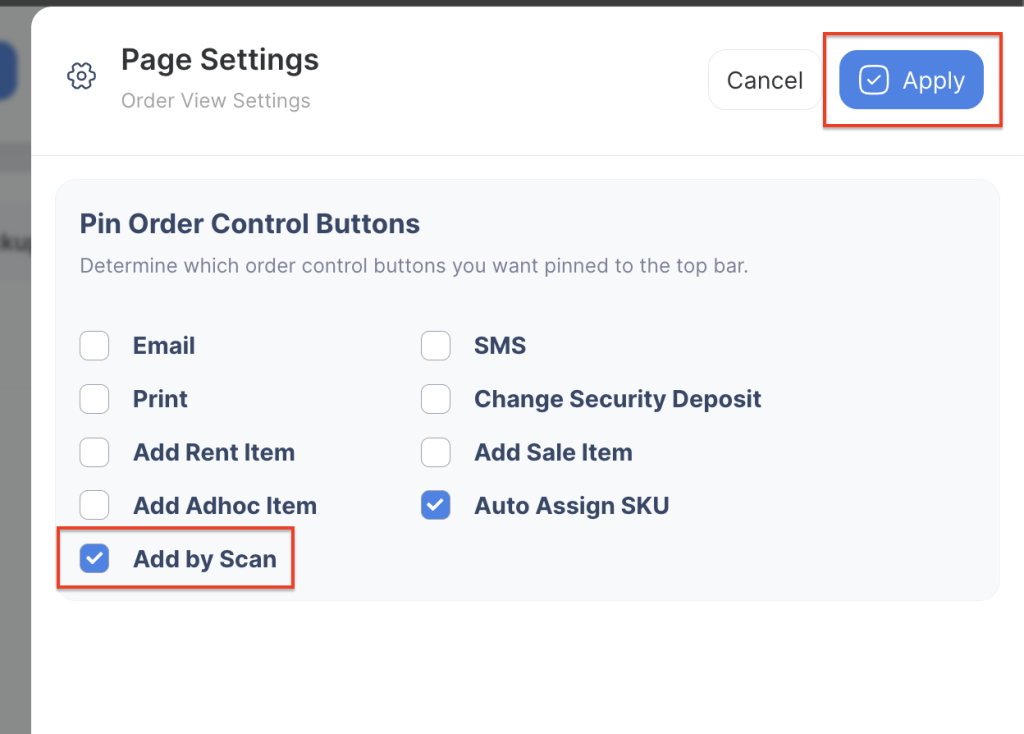
2. The Add By Scan button pinned to the order for adding the items to the order easily.
Important Notes
- Make sure the correct assignee is selected before scanning.
- Only items available at the same location and with the same activity type can be added.
- If scanning fails, check:
- Barcode accuracy
- Item availability
- Location mismatch