
The Auto Assign SKU feature helps streamline the process of assigning inventory items to an order by scanning barcodes. It allows you to quickly assign SKUs based on the total items in an order or by individual participants (renters), reducing manual effort and improving accuracy.
With this feature, you can scan items in bulk for the entire order or focus on assigning items to specific renters one at a time.
How It Works
- Scan a SKU to automatically match it with the correct product category and option in the order.
- If an exact match is not found, the system assigns the SKU to an available item without a specified option.
- Scanning a SKU that is already assigned will unassign it from the current order.
Assignment Options
Auto Assign SKU provides flexible assignment methods:
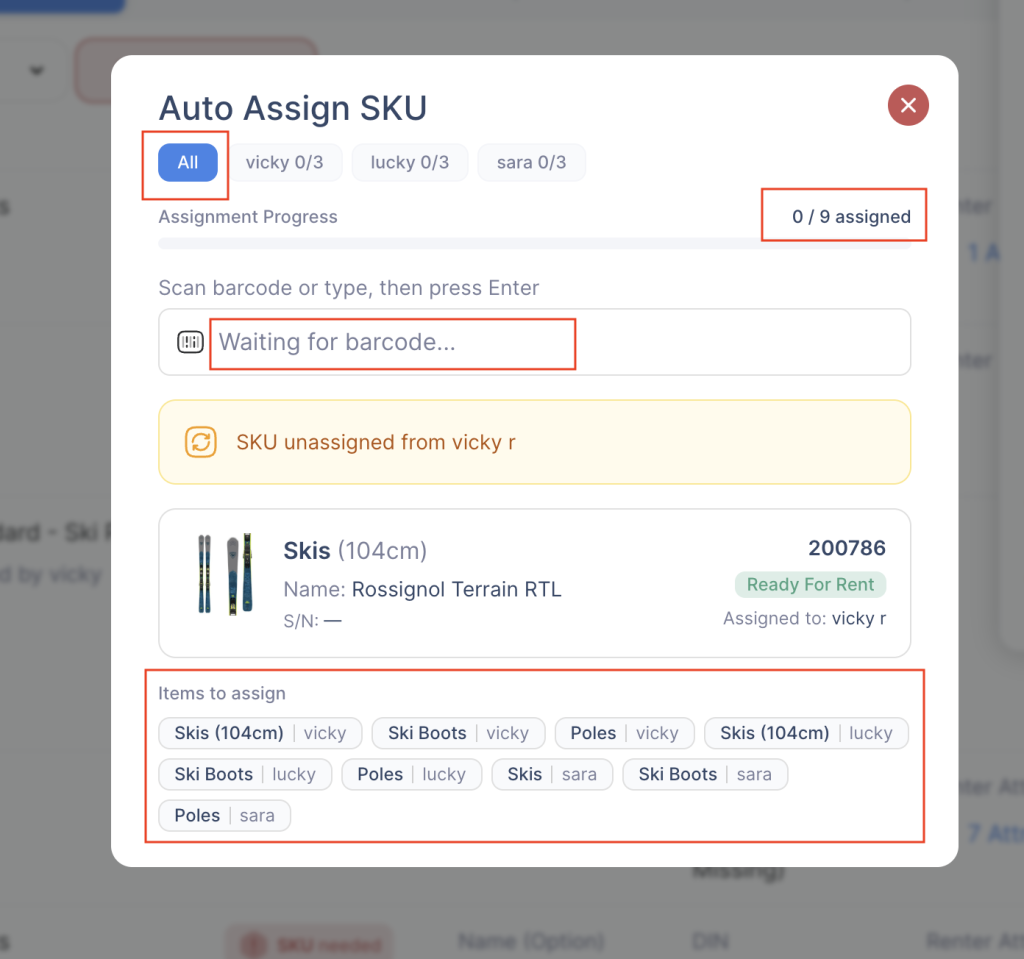
1. Assign for All Participants
- Select the All option to scan and assign items across the entire order.
- The system distributes scanned SKUs to all pending items automatically.
- Best used when processing items in bulk.
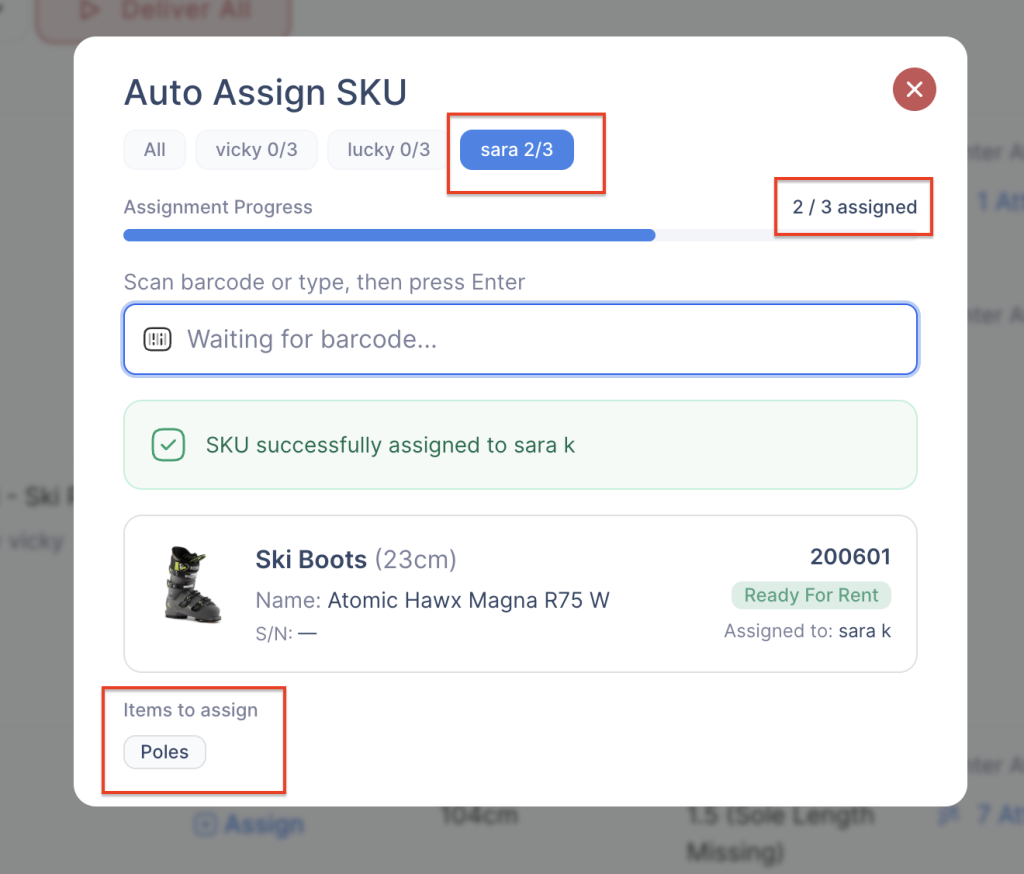
2. Assign by Individual Renter
- Select a specific renter (e.g., Vicky, Lucky, Sara) to assign items only to that person.
- Scan all required items for that renter in one go.
- This is useful when organizing or distributing equipment per individual.
Steps to Use Auto Assign SKU
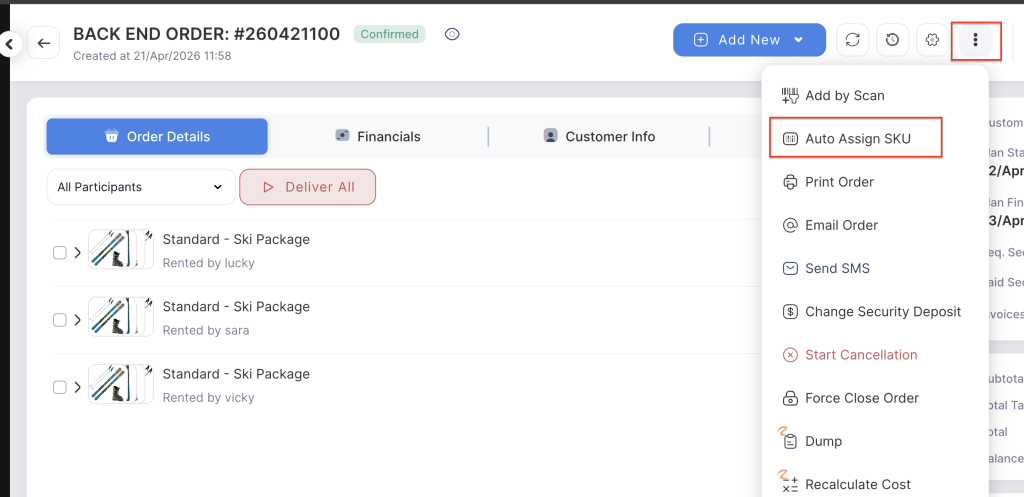
- Click on the three dot menu and choose “Auto Assign SKU” and continue scanning until all items are assigned.
2. Click on the Auto Assign SKU button
3. Choose your assignment mode:
- All (bulk assignment), or
- A specific renter.
4. Review the Items to Assign section to see pending items.
5. Scan the barcode using a scanner or type the SKU manually.
6. Press Enter to assign the item.
Tracking Progress
- The Assignment Progress bar shows how many items have been assigned out of the total.
- Example: 1 / 9 assigned indicates remaining items to be scanned.
Pin control Buttons to the Order
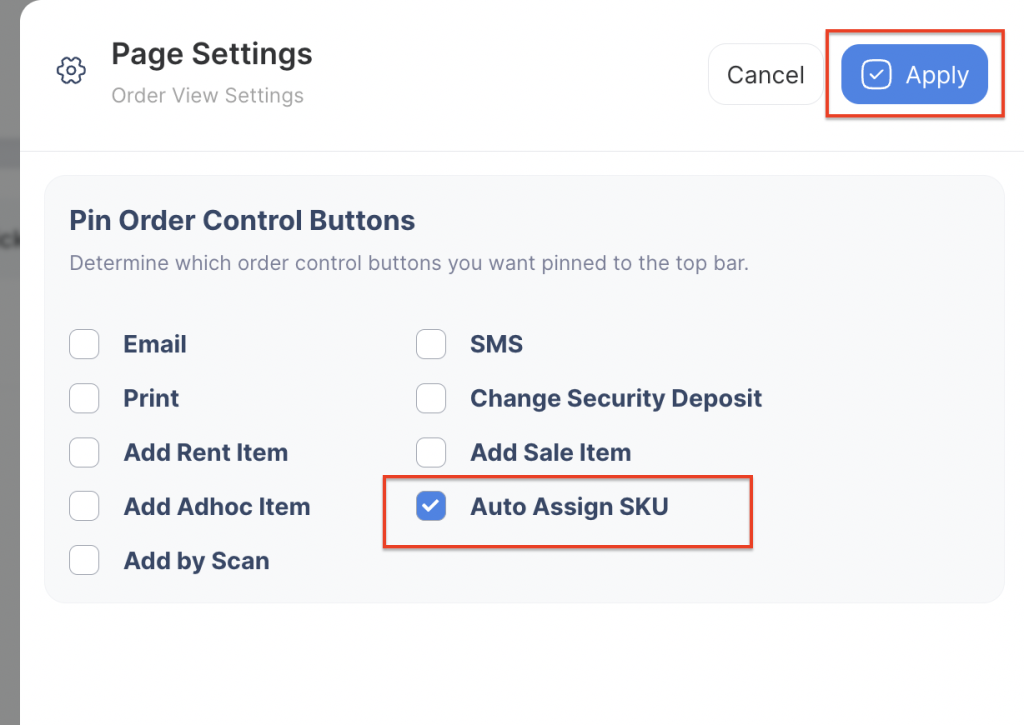
- Click on the Setting gear and select the “Auto Assign SKU” from the order control buttons to pin to the top bar.
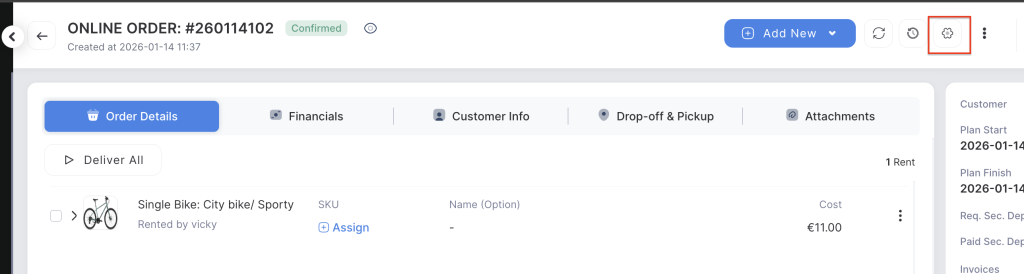
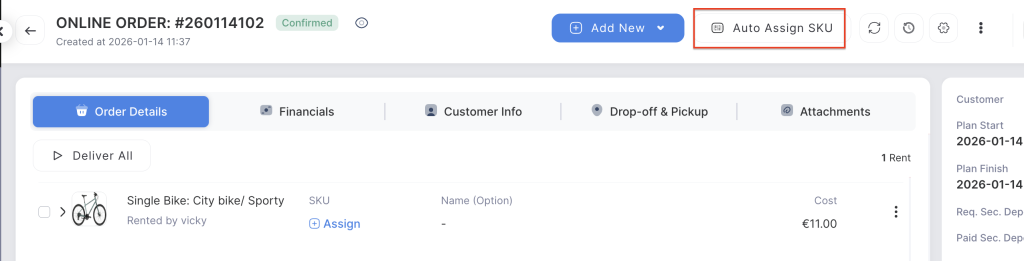
2. The Auto Assign SKU button pinned to the order for easy scanning.
Additional Notes
- You can quickly identify which items are still pending in the Items to Assign section.
- If a mistake is made, simply rescan the SKU to unassign it.
- This feature is designed to speed up workflows, especially for large rental orders with multiple participants.