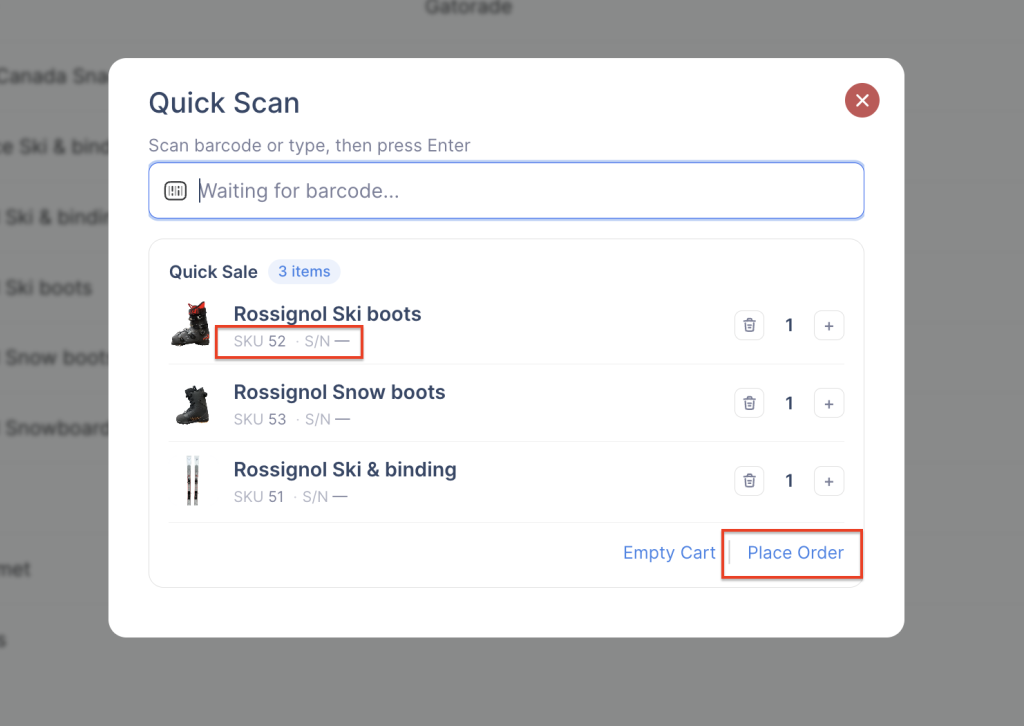
Quick Sale is a fast and efficient tool for managing orders and inventory by scanning a barcode or entering a code manually. It supports multiple input types, including order numbers, invoice numbers, product SKUs, and serial numbers, allowing users to quickly locate records.
Once a match is found, the corresponding order or invoice opens automatically, saving time and reducing the need for manual navigation.
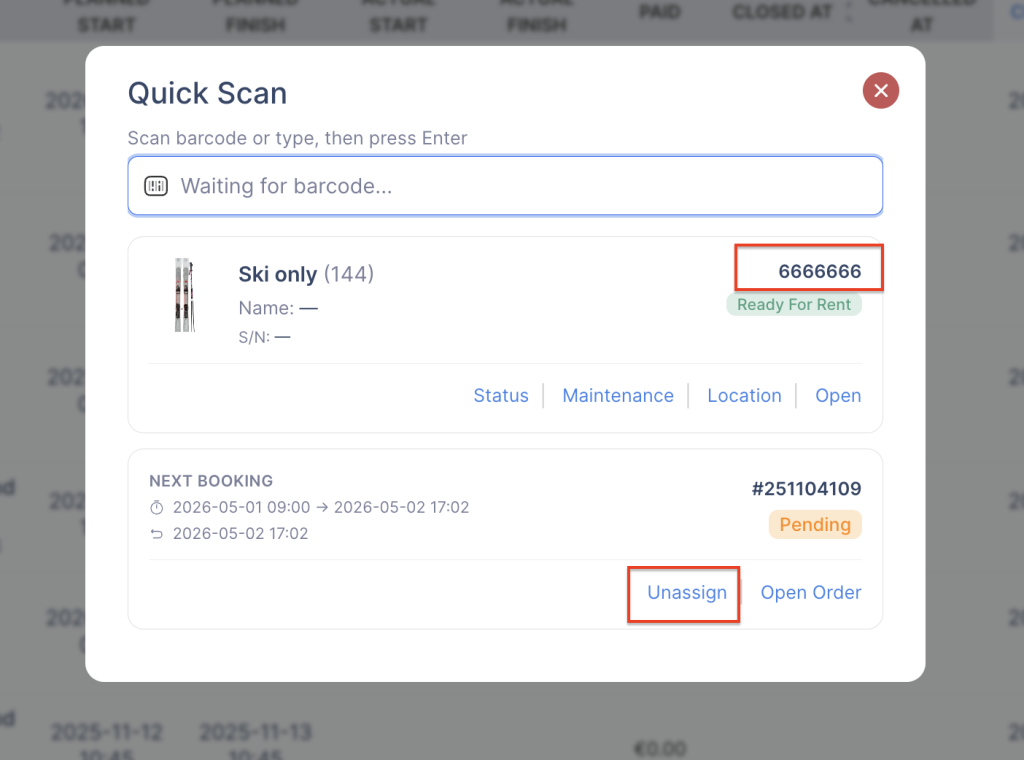
For rental products, Quick Sale also displays the current status, along with the most recent and upcoming assigned orders. This provides clear visibility into item usage. In addition, users can perform key actions such as updating status, changing locations, scheduling maintenance, processing returns, and more—all from a single streamlined interface.
Order/Invoice Scanning
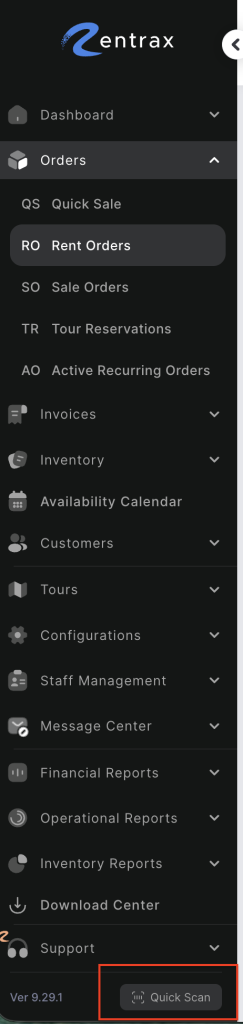
- Click the Quick Sale button at the bottom of the screen.
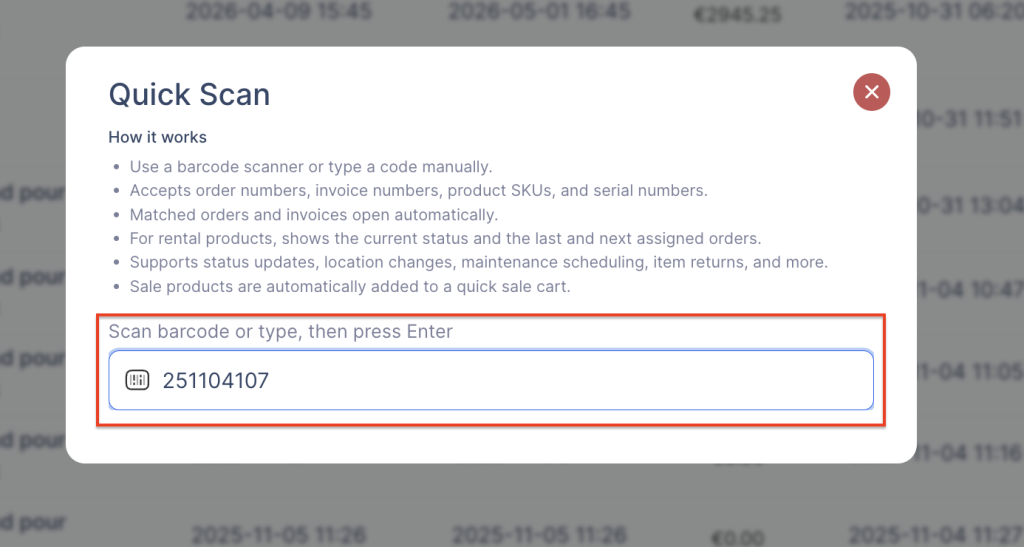
2. Enter the rental/sales order number or invoice number manually, or scan the barcode using a barcode scanner.
3. Press Enter.
4. The corresponding order or invoice will open automatically.
Scanning Rental Product SKU/Serial Number
- Click the Quick Sale button at the bottom of the screen.
2. Enter the SKU manually or scan the SKU barcode using a barcode scanner.
3. View product details, including:
- Current status
- Associated orders (if any)
- Last and next assigned orders
- Maintenance schedule
- Back-to-fleet date and time
4. Perform actions such as updating status or changing the SKU location as needed.
Scanning Sales Product SKU/Serial Number
The system will allow you to create a new sales order for the scanned product.
- Click the Quick Sale button at the bottom of the screen.
2. Enter the SKU manually or scan the SKU barcode using a barcode scanner.